 SPSS TUTORIALS
Merging data with ADD FILES can result in nonsensical data. This occurs when variables or values have different meanings over files. By comparing dictionaries over files, inconsistently coded variables are quickly detected.
So What's the Problem?
When files are merged with ADD FILES, inconsistent dictionary information is discarded. This will happen, for example, if a variable v1 means "gender" in one file and "employment status" in another. In this case, values indicating gender will seem to indicate employment status or vice versa.
So What's the Solution?
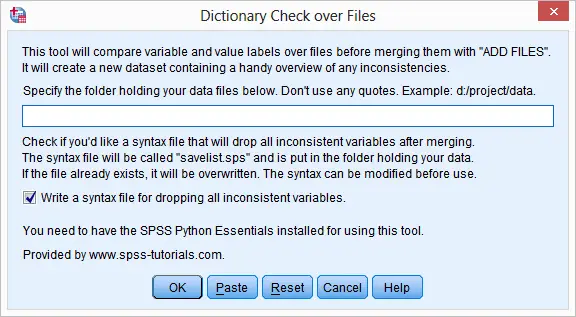 SPSS Compare Dictionaries Tool
- Put the files you'd like to merge in a single folder. Make sure there's no other .sav files in this folder.
- Close all open datasets.
- Make sure you have the SPSS Python Essentials installed.
- Download and install SPSS Dictionary Checker. Note that this is an SPSS custom dialog.
- Go to
 . Copy-paste the path to the data folder into the dialog and select whether you'd like a syntax file with a "save list" of variables to be written. Click and run the pasted syntax.
 - Clicking the tool's button will take you to this tutorial. We very much appreciate your feedback on it.
Explanation of the Dictionary Overview
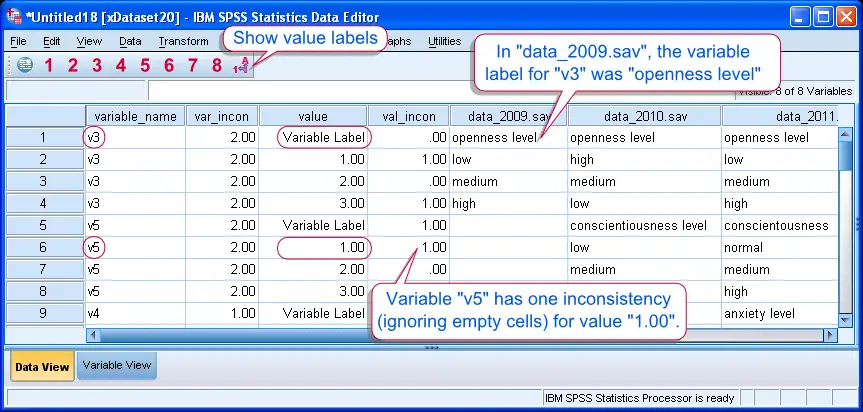 SPSS Compare Dictionaries Tool Result
- This command will always produce a new dataset presenting an overview of the dictionary comparison.
- Each row represents either a value or a variable with value labels and variable labels over different source files.
- Empty cells indicate that either the variable wasn't present in one or more source files or no label was defined.
- Value inconsistencies (
val_incon) is (the number of distinct labels - 1). Empty cells are not counted as distinct labels. - Variable inconsistencies (
var_incon) is the sum of all value inconsistencies for each variable. - Variables are sorted in descending order according to variable inconsistencies. That is, the "worst" variables are moved to the top of the dataset.
- Variables with zero variable inconsistencies are removed from the overview by default. Fully consistent data files, therefore, will result in an empty new dataset.
- The command is case insensitive. All labels are converted to lower case before comparing them.
Notes on the Syntax File
- The dictionary check may write a new syntax file containing all consistently coded variables.
- The file is called "savelist.sps" and will appear in the source data folder.
- If this file already exists, it will be overwritten.
- Before use, variables can be added to or removed from this "save list".
- In order to use it, first merge all files and then run this syntax file over the result. It will drop all variables that are not in the "save list".
THIS TUTORIAL HAS 15 COMMENTS:
By Eli Kleinberger on October 15th, 2014
Ruben, this is a nice tool - thanks!
A small suggestion - instead of open text for the path, could use a browsing control, set to browse for a folder.
By Ruben Geert van den Berg on October 16th, 2014
Thanks for the suggestion but I think it can't be done (at least not in version 22 that I'm on); the file browser control in SPSS Custom Dialog Builder accepts only file names, no folders.
By Van on April 23rd, 2015
Hi Ruben,
I did exactly what you explained above and instead of giving me the Dictionaries Tool Results, SPSS only opened one of the files in the data folder.
There are no error messages in Output.
What could be the problem?
By Ruben Geert van den Berg on April 27th, 2015
Are you sure you have the SPSS Python Essentials running properly?
By Spssuser on July 29th, 2015
I was very excited about this tool. But my result was the same as Van's. No errors, no results. It just opens the first file in the directory in version 22. I confirmed that Python is installed and running correctly. In version 21 i get the following error:
>Error # 6890. Command name: begin program
>Configuration file spssdxcfg.ini is invalid.
>Execution of this command stops.
Configration file spssdxcfg.ini is invalid because the LIB_NAME is NULL.