 SPSS TUTORIALS
SPSS Time Variables Tutorial
Having a solid understanding of what SPSS time variables are, you may find calculations on them surprisingly easy. This tutorial will demonstrate SPSS' main time functions. However, we'll also show that we often don't even need them for getting things done.
Throughout this tutorial, keep in mind that SPSS time variables contain time spans in numbers of seconds that may or may not express clock times. Second, time variables are numeric variables so all numeric functions can be applied to them.
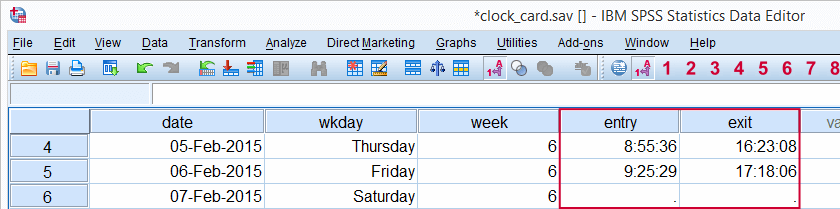
We encourage you try the time calculations we'll demonstrate yourself. You can do so by downloading and opening clock_card.sav.
SPSS Main Time Functions
Most of SPSS' date functions are intended for time variables as well. After outlining them in the table below, we'll take a closer look at them in the remainder of this tutorial.
| Function | Use | Example | Returns |
|---|---|---|---|
| DATEDIFF | Compute difference between two times in given time unit | DATEDIFF(time1,time2,'minutes') | Standard numeric value |
| DATESUM | Add number of given time units to time variable | DATESUM(time,8,'hours') | Time value |
| XDATE | Extract time component from time variable | XDATE.HOURS(time) | Standard numeric value |
| TIME.HMS | Create time value from hours, minutes, seconds | TIME.HMS(20,15,30) | Time value |
SPSS DATEDIFF Function
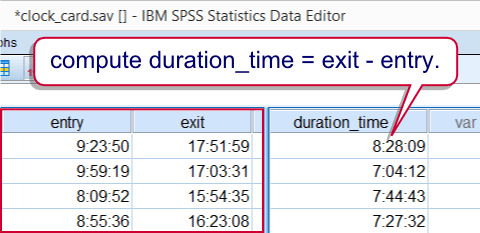
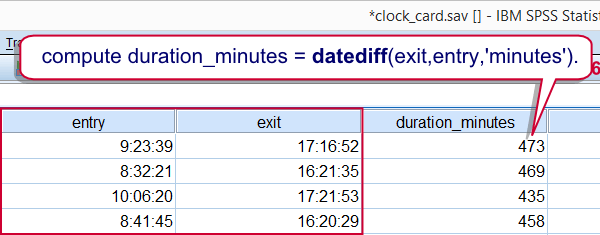
Our data contain the entry and exit times of an employee as registered with a clock card. We first want to know how much time he spent in the office per day. The syntax below shows how to do so with and without using DATEDIFF. The screenshots show the results of both options.
SPSS DATEDIFF Syntax Example
compute duration_time = exit - entry.
exe.
*2. Display duration in seconds as time.
formats duration_time(time8).
*2. Compute duration in minutes with DATEDIFF.
compute duration_minutes = datediff(exit,entry,'minutes').
exe.
*4. Hide decimals.
formats duration_minutes(f3).
SPSS DATESUM Function
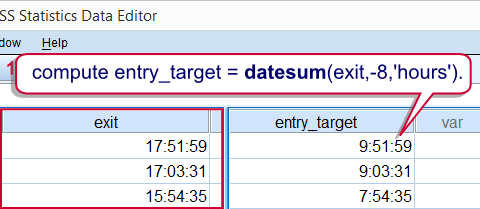
Employees are supposed to spend 8 hours per day in the office. That is, their entry times should be their exit times minus 8 hours. Such time subtractions (or additions) are easily accomplished by using DATESUM. However, realizing that hours consist of 3600 seconds, we may obtain the same result with an ordinary addition as shown in the second example.
SPSS DATESUM Syntax Example
compute entry_target = datesum(exit,-8,'hours').
exe.
*2. Display entry_target as time.
formats entry_target(time8).
*3. Alternative to datesum for exit_target (8 hours after entry).
compute exit_target = entry + 3600 * 8.
exe.
*4. Display exit_target as time.
formats exit_target(time8).
SPSS XDATE Function
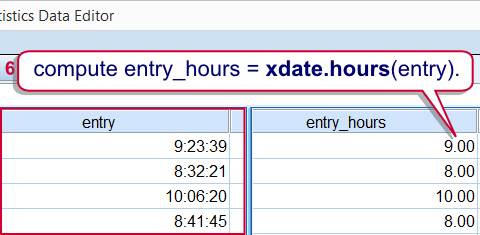
Employees are supposed to be in before 10 AM. One way to flag late entries is to extract the hours from the entry times with XDATE. XDATE needs to be suffixed with the time unit we wish to extract as in XDATE.HOURS. Finally, we'll RECODE the hours into our flag variable.
SPSS XDATE Syntax Example
compute entry_hours = xdate.hours(entry).
exe.
*2. Flag cases where entry_hours >= 10 (late entry).
recode entry_hours(lo thru 9 = 0)(10 thru hi = 1) into late_entry.
exe.
SPSS TIME.HMS Function
SPSS time variables hold numbers of seconds. TIME.HMS converts a number of hours, minutes and seconds into seconds and is thus creates SPSS time values from normal time components.
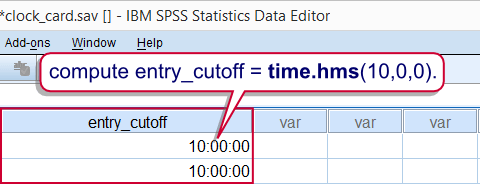
The minutes and seconds are optional; if omitted, they'll default to zero. That is, TIME.HMS(10) is a shorthand for TIME.HMS(10,0,0) and returns 36,000 (seconds). We can show this value as 10:00:00 by setting its format to TIME8.
The syntax below uses TIME.HMS as an alternative way to flag late entries.
SPSS TIME.HMS Syntax Example
compute entry_cutoff = time.hms(10,0,0).
exe.
*2. Display entry_cutoff as time.
formats entry_cutoff(time8).
*3. Delete late_entry before recalculating it.
delete variables late_entry.
*4. Recalculate late_entry.
if entry < entry_cutoff late_entry = 0.
if entry >= entry_cutoff late_entry = 1.
exe.
SPSS Time Comparisons
SPSS time comparisons are utterly simple when we realize that SPSS time values are just numbers of seconds that are shown as hours, minutes and seconds. For comparing an SPSS time value to a normal time value (hours, minutes and seconds), simply convert the latter into seconds. TIME.HMS does just that. Next, simply use SPSS' standard operators such as >, <= and others.
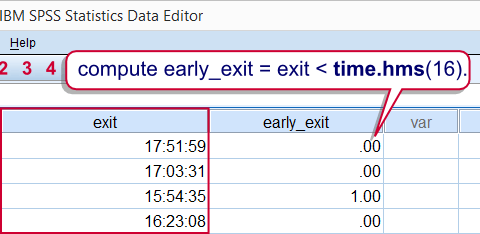
For example, employees are not supposed to leave before 4 PM. The syntax below shows a super shorthand for flagging early exits.The unusual COMPUTE command is explained in Compute A = B = C.
SPSS Time Comparison Syntax Example 1
compute early_exit = exit < time.hms(16).
exe.
SPSS Time Comparison Example 2
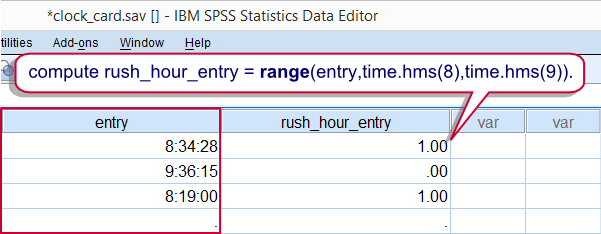
Because TIME.HMS is a function, it can be substituted in other functions, particularly RANGE. The following example shows how to use it for flagging entries during rush hours (from 8 until 9 AM).
compute rush_hour_entry = range(entry,time.hms(8),time.hms(9)).
exe.
SPSS Time Variables in AGGREGATE
This final example again reemphasizes that SPSS time variables are numeric variables, holding seconds, on which normal numeric functions can be used.
For example, employees are supposed to work 40 hours per week. To what extent do our data meet that criterion? We already calculated duration_time, which is a time variable holding seconds. We can simply sum it per week by using AGGREGATE. This results in seconds per week which we'll show as normal times by setting their format to TIME8.
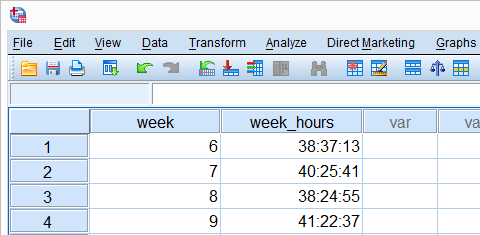
aggregate outfile *
/break week
/week_hours = sum(duration_time).
*2. Show seconds as hours, minutes, seconds.
formats week_hours(time8).
SPSS Time Variables Basics
Introduction
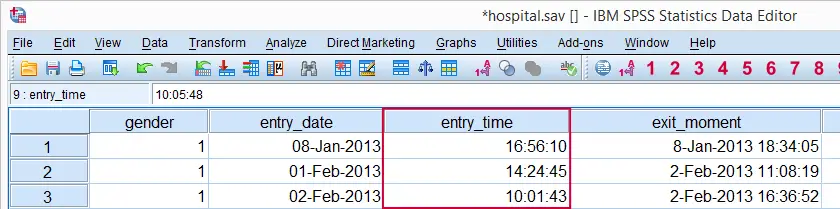
Working efficiently with SPSS time variables is not hard if you understand some basics. This tutorial walks you through just those. We recommend you follow along by downloading and opening hospital.sav.
SPSS Time Variables - What Are They?
SPSS time variables are variables that hold time intervals in numbers of seconds. Although the actual time values are just simple numbers, they are usually displayed as hours, minutes and seconds. Don't let this appearance confuse you; it's the underlying numbers of seconds that time calculations act upon.
Note that SPSS time variables are numeric variables: all of SPSS' numeric functions can be used on them in the exact same way as you would on other numeric variables. However, we often use SPSS time functions for calculations on time variables.
SPSS Common Time Formats
Time values are numbers of seconds but we usually display them as hours, minutes and seconds. We can do so by setting their format to one of SPSS' time formats. The table below shows the most common ones.
| Variable Type | Format family | Format (example) | Shown as |
|---|---|---|---|
| Numeric | Time | Time5 | 16:56 |
| Numeric | Time | Time8 | 16:56:10 |
SPSS Time Variables - Example
We'll now focus on entry_time in our data. We'll take a look at its actual values (numbers of seconds) in data view; running the following line of syntax will show them: formats entry_time(f1).
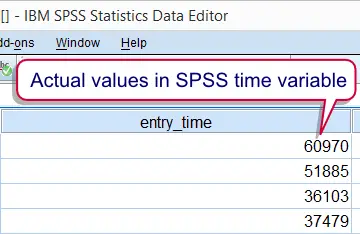
Note that this doesn't change the values in any way; they're merely displayed differently. We can show them as normal time values again by running formats entry_time(time8). Knowing that time values are really just numbers of seconds makes it pretty easy to work with them. For instance, we can set all time values one hour ahead by simply adding 3600 (seconds in one hour) to them by running the syntax below.
SPSS Time Variable Syntax Example
compute entry_time = entry_time + 3600.
*2. Sort cases on entry_time descendingly.
sort cases by entry_time(d).
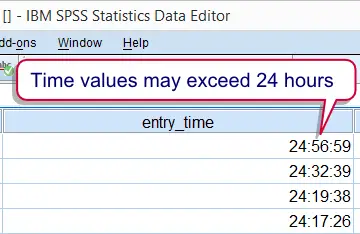
Looking at the result, we notice something strange: the first couple of values exceed 24 hours. That is pretty odd in this particular case. However, it generally makes sense when we understand the nature of SPSS time values, which we'll discuss next.
SPSS Time Values
Keep in mind that SPSS time values contain time intervals. These often indicate clock times as intervals between midnight and a given time point. However, this is not necessarily the case.
For example, the duration of a hotel stay (difference between exit moment and arrival moment) will typically be entered as a time variable in SPSS. This time interval probably doesn't start at midnight and will often exceed 24 hours.
In short, SPSS time variables hold time spans that may or may not indicate clock times. SPSS time values may also exceed 24 hours because they don't contain a day or month component.