 SPSS TUTORIALS
Extract Digits from String Variable
- Inspect Frequency Table
- Extract Leading Digits
- Inspect Which Values Couldn't be Converted
- Inspect Final Results
Recently, one of our clients used a text field for asking his respondents’ ages. The resulting age variable is in age-in-string.sav, partly shown below.
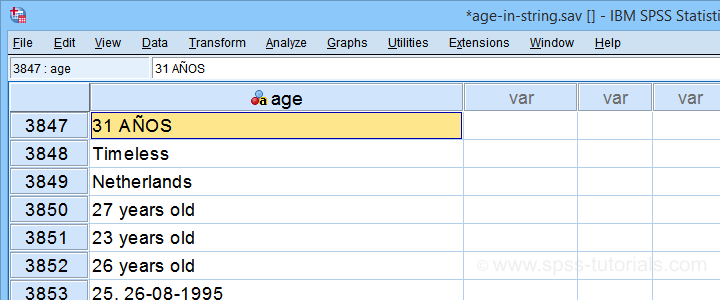
I hope you realize that this looks nasty:
- age is a string variable so we can't compute its mean, standard deviation or any other statistic;
- we can't readily convert age into a numeric variable because it contains more than just numbers;
- a simple text replacement won't remove all such undesired characters.
For adding injury to insult, the data contain 3,895 cases so doing things manually is not feasible. However, we'll quickly fix things anyway.
Inspect Frequency Table
Let's first see which problematic values we're dealing with anyway. So let's run a basic frequency table with the syntax below.
frequencies age
/format dfreq.
Result
If we scroll down our table a bit, we'll see some problematic values as shown below.
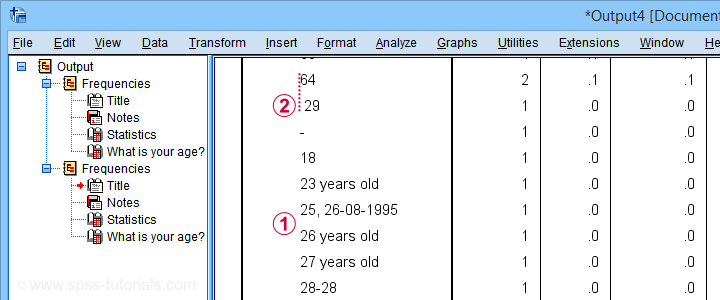
This table shows us 2 important things:
 most values that can be corrected start off with 2 digits;
 at least one value is preceded by a leading space.
Let's first remove any leading spaces. We'll simply do so by running compute age = ltrim(age).
Extract Leading Digits
We'll now extract any leading digits from our string variable with the syntax below.
string nage (a3).
*Loop over characters in age and pass into nage if they are digits.
loop #ind = 1 to char.length(age).
do if(char.index('0123456789',char.substr(age,#ind,1)) > 0).
compute nage = concat(rtrim(nage),char.substr(age,#ind,1)).
else.
break.
end if.
end loop.
execute.
So what we very basically do here is
- we create a new string variable;
- we LOOP through all characters in age;
- we evaluate if each character is a digit: char.index returns 0 if the character can't be found in '0123456789'.
- if the character is a digit (DO IF), we'll add it to the end of our new string variable;
- if the character is not a digit (ELSE), BREAK ends the loop for that particular respondent.
This last condition is needed for values such as “55 and will become 56 on 3/9” We need to make sure that no digits after “55” are added to our new variable. Otherwise, we'll end up with “555639” -an age perhaps only plausible for Fred Flintstone.
Inspect Which Values Couldn't be Converted
Let's now inspect which original age values could not be converted. We'll rerun our frequency distribution but we'll restrict it to respondents whose new age value is still empty.
temporary.
select if (nage = '').
*Check which age values weren't converted yet.
frequencies age
/format dfreq.
Result
Surprisingly, a quick scroll down our table shows that we can reasonably convert only a single unconverted age value: “Will become 56 on the 3rd of September:-)”
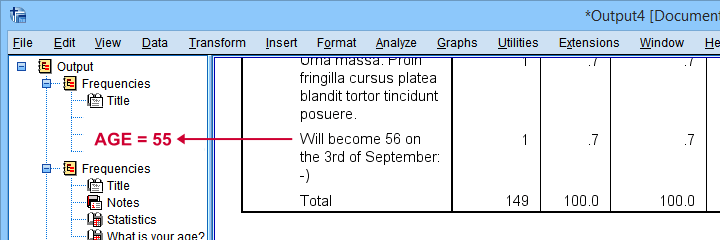
It is probably safe to infer from this statement that this person was 55 years old at questionnaire completion. We'll set his age to 55 with a simple IF command. We'll then run a quick final check.
if(char.index(age,'Will become 56') > 0) nage = '55'.
*Recheck which age values weren't converted yet.
temporary.
select if (nage = '').
frequencies age
/format dfreq.
Final Frequency Table
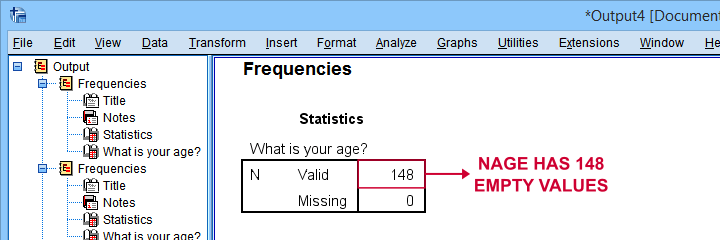
As shown below, our minimal corrections resulted in a mere 148 (out of 3,895) unconverted ages. A quick scroll down our table shows that no further conversions are possible.
We'll now convert our new age variable into numeric with ALTER TYPE and inspect the result.
alter type nage(f3).
*Check age distribution.
frequencies nage
/histogram.
*Exclude nage = 99 from all analyses and/or editing.
missing values nage (99).
Inspect Final Results
First off, note that our final age variable has N = 148 missing values -just as expected. It is important to check this because ALTER TYPE may result in missing values without throwing any error or warning.
Next, a histogram over our final age values is shown below.
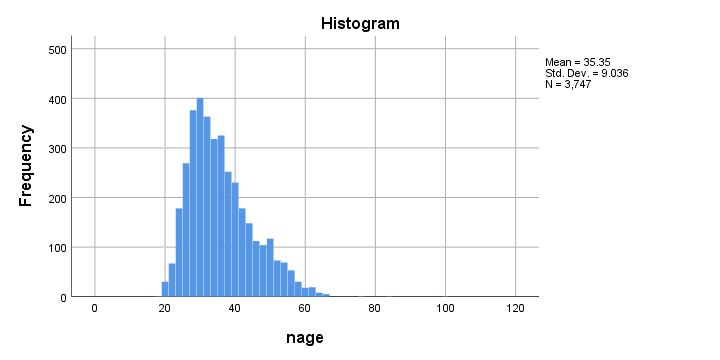
Although the age distribution looks plausible, the x-axis runs up to 120 years. SPSS often applies a 20% margin on both sides so this may indicate an age around 100 years.
Closer inspection shows that somebody reported an age of 99 years. As we think that's not plausible for the current study, we set it as a user missing value.
Done.
Thanks for reading!
SPSS String Variables – Quick Tutorial
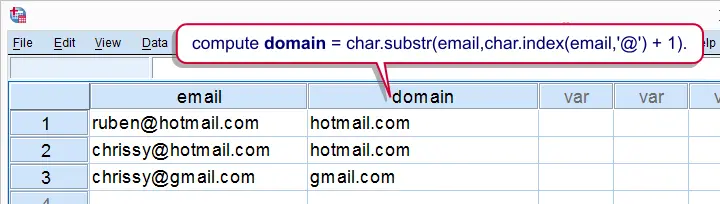
Working with string variables in SPSS is pretty straightforward if one masters some basic string functions. This tutorial will quickly walk you through the important ones.
SPSS Main String Functions
CHAR.SUBSTR(substring) - Extract character(s) from stringCONCAT(concatenate) - Combine stringsCHAR.INDEX- Find first occurrence of character(s) in stringCHAR.RINDEX(right index) - Find last occurrence of character(s) in string- REPLACE - Replace character(s) in string by different one(s)
CHAR.LENGTH- Return number of characters in string- LTRIM (left trim) - Remove leading spaces (or, rarely, other characters)
- RTRIM (right trim) - Remove right trailing spaces (or, rarely, other characters)
LOWER(lower case) - Convert all letters to lower caseUPCASE(upper case) - Convert all letters to upper case
SPSS Syntax Example
We asked respondents to type in their first name, surname prefix and last name. We'd like to combine these into full names and correct some irregularities such as incorrect casing and double spaces. For creating some test data, close all open datasets and run the syntax below.
set unicode off.
data list free/s1 s2 s3 (3a20).
begin data
'ANNEKE' ' VAN DEN ' 'BERG' 'daan' '' 'balvert' 'a' '' 'b'
end data.
1. Correcting First Names
- One approach is to first correct each name component separately and then combine them.
- For the data at hand, first names should start with a capital and remaining letters should be in lower case.
- We'll break things up in small steps. We'll gradually combine these using substitution: using functions within functions.
- It's recommended you inspect the results carefully after running each step.
- Note there's separate tutorials on substrings and concatenate.
string n1 to n4 (a20).
*2. Extract first letter of first name.
compute n1 = char.substr(s1,1,1).
exe.
*3. Convert to upper case.
compute n1 = upcase(n1).
exe.
*4. Substitution: use substring function within upcase function.
compute n1 = upcase(char.substr(s1,1,1)).
exe.
*5. Extract remaining letters and convert to lower case.
compute n1 = lower(char.substr(s1,2)).
exe.
*6. Substitution: concatenate results from previous attempts.
compute n1 = concat(upcase(char.substr(s1,1,1)),lower(char.substr(s1,2))).
exe.
2. Correcting Surname Prefixes
- Since these are Dutch names, surname prefixes should be entirely in lower case.
- However, we'll first remove any leading spaces using the
LTRIMfunction. - Next we'll replace double by single spaces. For correcting longer sequences of spaces, see the second syntax example of SPSS LOOP Command.
compute n2 = ltrim(s2).
exe.
*2. Substitution: remove leading spaces and convert to lower case.
compute n2 = lower(ltrim(s2)).
exe.
*3. Replace double spaces by single spaces.
compute n2 = replace(n2,' ',' ').
exe.
3. Combining First and Last Names
- For last names, the same rules hold as for first names: the first letter in upper case and remaining letters in lower case.
- Therefore, we can reuse the expression we wrote for the first names after some minor modifications.
- Now, combining first, middle and last names requires slightly more than a basic concatenation. This is because SPSS automatically right pads string values with spaces to match the length of the string variable.
- Therefore, concatenating 3 strings with length 20 results in a string with length 60. In case of insufficient variable width, only the first characters are shown. This is what happens in the example below (although it looks like the concatenation is not working).
- In Unicode mode
RTRIMis applied automatically. However, including it in the syntax anyway ensures that things will work properly regardless whether or not SPSS is in Unicode mode or not.
compute n3 = concat(upcase(char.substr(s3,1,1)),lower(char.substr(s3,2))).
exe.
*2. If rtrim is omitted, concat doesn't seem to work.
compute n4 = concat(n1,n2,n3).
exe.
*3. Correct concatenation but spaces should be inserted.
compute n4 = concat(rtrim(n1),rtrim(n2),rtrim(n3)).
exe.
*4. Final concatenation.
compute n4 = concat(rtrim(n1),' ',rtrim(n2),' ',rtrim(n3)).
exe.
*5. Replace double spaces by single spaces.
compute n4 = replace(n4,' ',' ').
exe.
4. Flag Single Letter Names
- Unfortunately, not all respondents filled out their real names. Many of such cases can't be detected from the data at hand but some suspicious patterns are easily identified.
- One such pattern are very short (1 or 2 letter) first or last names. Since we have those separately in the data we can use
CHAR.LENGTHto flag these cases. - For combined names, the first name consists of all letters up to the first space. We can find it by using the
CHAR.INDEXfunction. - Reversely, the last name holds all letters after the last space which can be found by
CHAR.RINDEX. Subtracting the position of the last space from the length of the name returns the length of the last name. - For example, "Anneke van den Berg" are 19 letters. The last space is the 15th letter. Now 19 minus 15 returns 4 - which is indeed the length of "Berg".
compute flag_1a = char.length(s1).
compute flag_1b = char.length(s3).
exe.
*2. Find short first/last names from combined names.
compute flag_2a = char.index(n4,' ') -1.
compute flag_2b = char.length(n4) - char.rindex(rtrim(n4),' ').
exe.
SPSS String Variables Basics
For working proficiently with SPSS string variables , it greatly helps to understand some string basics. This tutorial explains what SPSS string variables are and demonstrates their main properties.
We encourage you along by downloading and opening string_basics.sav. The syntax we use can be copy-pasted or downloaded here.
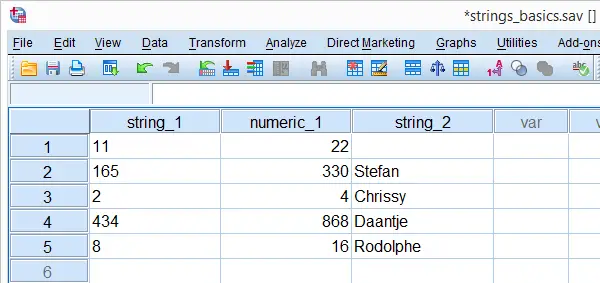
SPSS String Variables - What Are They?
String variables are one of SPSS' two variable types. What really defines a string variable is the way its values are stored internally.We won't go into this technical matter here but those who really want to know may consult our Unicode tutorial. A simpler definition is that string variables are variables that hold zero or more text characters.
String values are always treated as text, even if they contain only numbers. Some surprising consequences of this are shown towards the end of this tutorial.
SPSS String Format
String variables in SPSS usually have an “A” format, where “A” denotes “Alphanumeric”. This can be seen by running the following line of syntax display dictionary. after opening the data. The result, shown in the screenshot below, confirms that we have two string variables having A3 and A8 formats.

The numeric suffixes (3 and 8 here) are the numbers of bytes that the values can hold. Starting from SPSS version 16, some characters may consist of two bytes.This is explained in Unicode mode. If you don't want to go into details, just choose string lengths that are twice the number of characters they need to contain to stay on the safe side.
SPSS String Command
Commands that pass values into variables, most notably COMPUTE and IF, can be used for both existing and new numeric variables. However, they can't be used for new string variables; you must first create one or more new, empty string variables before you can pass values into them. This is done with the STRING command. Its most basic use is
STRING variable_names (A10).
As explained earlier, A10 means that the new variable can hold values of up to 10 bytes. The syntax below creates a new string variable in our test data.
string string_3(a10).
*2. Pass values into new string variable.
compute string_3 = 'Hello'.
exe.
SPSS String Function
SPSS' string function converts numeric values to string values. Its most basic use is
compute s2 = string(s1,f1).
where s2 is a string variable, s1 is a numeric variable or value and f1 is the numeric format to be used.
With regard to our test data, the syntax below shows how to convert numeric_1 into (previously created) string_3. In order to capture all three digits, we need to specify f3 as the format.
compute string_3 = string(numeric_1,f3).
exe.
Quotes Around String Values
If you use string values in syntax, put quotes around them. For example, say we want to flag all cases whose name is “Stefan”. The screenshot shows the desired result. The syntax below demonstrates the wrong way and then the right way to do so.A faster way to do this is compute find_stefan = string_2 = 'Stefan'. Compute A = B = C explains how this works.
compute find_stefan = 0.
exe.
*2. Wrong way: without quotes Stefan is thought to be variable name.
if string_2 = Stefan find_stefan = 1.
exe.
*3. Right way: quotes around Stefan.
if string_2 = 'Stefan' find_stefan = 1.
exe.
Result
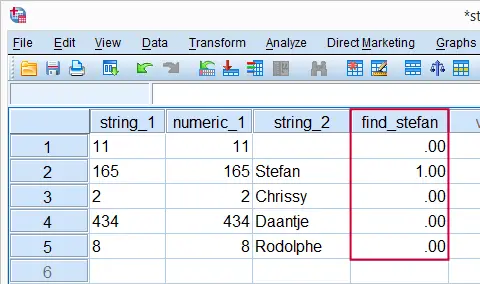 Flagging Cases Whose Name is Stefan
Note that the second step triggers SPSS error #4285: due to the omitted quotes, SPSS thinks that Stefan refers to a variable name and doesn't find it in the data.
String Values are Case Sensitive
Now let's create a similar flag variable for cases called “Chrissy”. After running step 2 in the syntax below, you can see in data view that no cases have been flagged; it uses the wrong casing. Step 3, using the correct casing, does flag “Chrissy” correctly.
compute find_chrissy = 0.
exe.
*2. Line below doesn't flag any cases because 'chrissy' is not the same as 'Chrissy'.
if string_2 = 'chrissy' find_chrissy = 1.
exe.
*3. Right way: 'Chrissy' instead of 'chrissy'.
if string_2 = 'Chrissy' find_chrissy = 1.
exe.
SPSS String Variables - System Missing Values
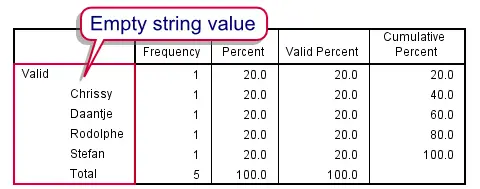
There's no such thing as a system missing value in a string variable; string values consisting of zero characters which are called empty strings are valid values in SPSS.Also note that you don't see a dot (indicating a system missing value) in an empty cell of a string variable. We can confirm this by running FREQUENCIES: frequencies string_2. Note that the empty string value is among the valid values.
Result
User Missing Values in String Variables
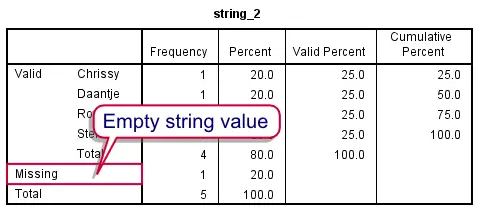
Over the years, we've seen many forum questions (and some heated debates) regarding user missing values in string variables. Well, running missing values string_2(''). specifies the empty string as a user missing value. This can be confirmed by rerunning its frequency table; the empty string is now in the missing values section as shown by the screenshot.
Result
Sorting on String Variables
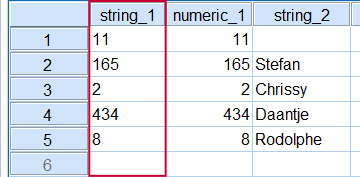
String values are seen as text, even if they consist of only numbers. A consequence is that string values are sorted alphabetically. To see what this means, run sort cases by string_1.
 Alphabetical Sorting of string_1
If this result puzzles you, represent the numbers 0 through 9 by letters a through j. Clearly, “bb” (= 11) comes before “c” (= 2) if sorted alphabetically.
No Calculations on String Variables
Because string values are seen as text, you can't do any calculations on them. For instance a COMPUTE command with some numeric function like compute string_1 = string_1 * 2. will trigger SPSS error #4307. It basically tries to tell us that our command crashed because a string variable was used in a calculation.

In a similar vein, most procedures involve calculations and thus won't run on string variables either. For example, descriptives string_1. won't produce any other results than a warning that the command crashed because only string variables were involved.