 SPSS TUTORIALS
SPSS Keyboard Shortcuts
SPSS keyboard shortcuts allow you to work with amazing speed. Some of the best SPSS shortkeys are not obvious at all so we'll list our 20 favorite SPSS shortkeys in the table below.Note: some shortkeys may be different on a Macintosh.
Enjoy!
Overview Most Useful SPSS Shortkeys
| Where | Shortkey | Useful for |
|---|---|---|
| Data Editor | CTRL + t | Switch between data view and variable view. |
| Data Editor | CTRL +  / /  | Go to first/last variable/case (depending on view). Allows for very quick case and variable count when combined with CTRL + t. |
| Syntax Window | Shift + / | Select lines of syntax above/below cursor position. |
| Syntax Window | F2 | Select Entire Command in which cursor is located. |
| Syntax Window | CTRL + r | Run selected syntax. |
| Any Window | CTRL + Home / End | Go to beginning/end of window contents. |
| Syntax Window | CTRL + c | Copy selected syntax. |
| Syntax Window | CTRL + x | Cut selected syntax. |
| Syntax Window | CTRL + v | Paste selected syntax. |
| Syntax Window | CTRL + a | Select all syntax in window. |
| Syntax Window | CTRL + f | Find expression within syntax window. |
| Syntax Window | CTRL + h | Replace expression within syntax window. |
| Syntax Window | CTRL + z | Undo last edit(s). Note: doesn't always seem to work properly in recent SPSS versions. |
| Syntax Window | Home / End | Move to start/end of line. |
| Any Window | Alt + tab | Switch between Syntax Window, Data Editor and Viewer Windows. Actually an MS Windows shortkey for switching between applications. |
| Any Window | Alt + F4 | Close any window. You'll usually get a pop-up window asking whether you'd like to save it if you haven't done so yet. |
| Syntax Window | F1 | When your cursor is located anywhere in a command, help for this command can be opened by pressing F1. |
| Syntax Window | Shift + Home / End | Select from cursor through start/end of line. |
| Any Window | CTRL + Shift + Home / End | Select from cursor through beginning/end of window contents. |
| Syntax Window | CTRL + y | Redo last edit(s). |
| Any Window | Alt + F6 | Back to previous window. Handy for switching between Syntax Window and Data Editor. |
SPSS Command Types
Summary
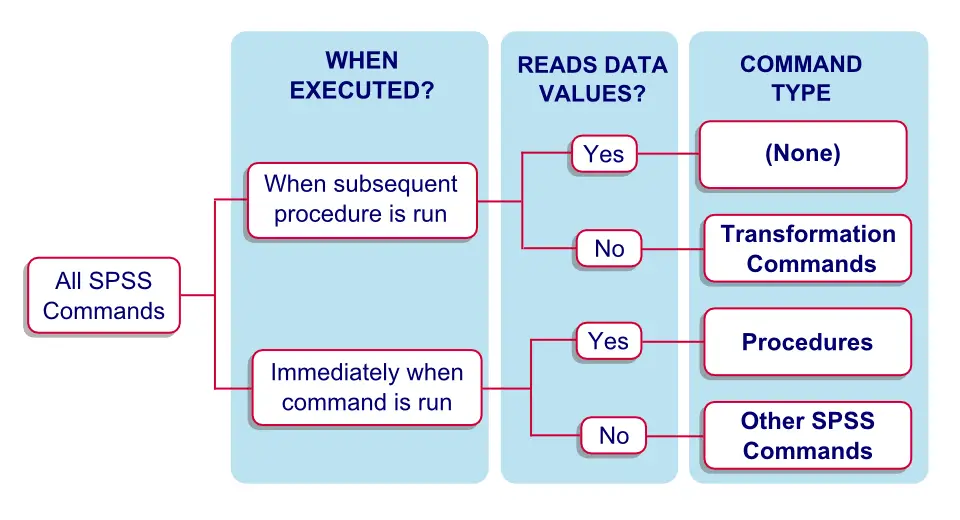
SPSS commands come in three basic types: procedures, transformations and other commands. Understanding this distinction will allow you to get things done in SPSS faster and more efficiently.
SPSS Command Types Diagram
SPSS Transformations
As shown in the figure, the first question is when a command is executed. Some SPSS commands are not carried out immediately when you run them. Such commands are referred to as transformations.
Most transformations create or “transform” data values. Typical examples are COMPUTE and IF. As a rule of thumb, only transformations can be used with LOOP, DO IF and DO REPEAT. For a more detailed discussion, see SPSS Transformation Commands.
SPSS Procedures
For commands that are executed immediately, the second question is whether they read the data. In SPSS, “reading the data” refers to the process of SPSS going through all cases (from top to bottom) in the data. This is explained and illustrated under data pass.
All commands that read the data are referred to as procedures in SPSS. Procedures do two basic things: report on data values (DESCRIPTIVES, FREQUENCIES) or create/tranform data values (AGGREGATE, RANK).
A reason for distinguishing procedures from other commands is that they do more than just their core functions. For instance, they also cause transformations to be executed and some other things. Second, procedures may require a lot of time when run on large datasets. For a more detailed discussion, see SPSS Procedures.
Other SPSS Commands
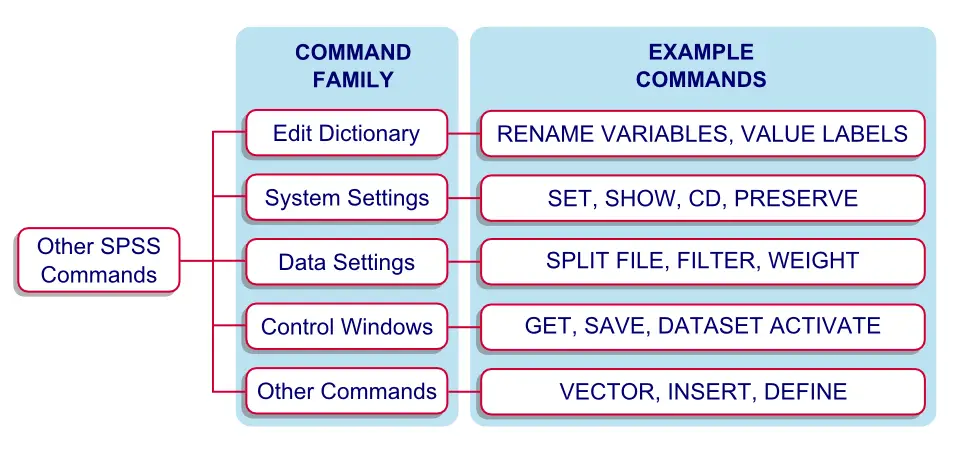
As shown in the figure, 5 groups of SPSS commands that are neither procedures nor transformations can be distinguished. These commands perform all sorts of tasks except report on data values or create/edit data values. We'll briefly discuss these 5 groups in the remainder of this tutorial.
SPSS Dictionary Commands
SPSS data files consist of two main components. First, there's data values as can be seen in data view. Second, there's dictionary information, part of which can be seen in variable view. SPSS’ dictionary contains mostly information describing data files and their variables and values.
Some dictionary information being incorrect or absent (especially missing values, variable labels and value labels) can cause corrupted data and erroneous research conclusions. It's therefore recommended that you carefully manage your data’s dictionary. The table below lists some commands for doing so. These commands can't be pasted from the menu but, fortunately, they're utterly simple.
Do not edit dictionary information manually under variable view. Because you can't keep track of such modifications (let alone replicate or correct them), you may have to do things all over if anything goes wrong.
Overview Main SPSS Dictionary Commands
| Command Name | Basic Function |
|---|---|
| ADD VALUE LABELS | Add or edit value labels. |
| MISSING VALUES | Specify missing values for one or many variables. |
| VALUE LABELS | Erase all value labels from one or more variables and/or specify new ones. For editing value labels, ADD VALUE LABELS is usually a better option. |
| RENAME VARIABLES | Change variable names. |
| VARIABLE LABELS | Add or edit description of variables. |
| FORMATS | Set formats for (mostly) numeric variables. |
| VARIABLE LEVEL | Sets measurement levels for variables. |
| VARIABLE WIDTH | Set display width (columns in variable view) for variable(s). |
| DELETE VARIABLES | Permanently delete one or more variables. |
| STRING | Create new string variable before setting its values with COMPUTE, IF or other command. |
| DOCUMENT | A DOCUMENT is a data file description that is saved as part of the dictionary. |
| DROP DOCUMENTS | See DOCUMENT. |
| APPLY DICTIONARY | Copy dictionary properties between files or variables. |
| DISPLAY | Display parts of dictionary. Use SHOW for displaying settings. |
| SYSFILE INFO | Display dictionary information from external SPSS data file. |
SPSS Windows Commands
Starting from SPSS version 14, you can have multiple Data Editor windows open simultaneously. These are referred to as datasets. For controlling these windows, use DATASET commands, some of which are listed in the table below.
From SPSS version 15, multiple output viewer windows can be used at once as well. These can be controlled by the OUTPUT commands in the table below.
Finally, you can also use multiple Syntax Editor windows simultaneously. Oddly, commands such as SYNTAX SAVE are as yet non existent in SPSS.
Note that OUTPUT MODIFY, introduced in SPSS version 22, is entirely different from the other OUTPUT commands: it does not control output windows but modifies items (mostly tables) in the active output window.
Overview Main SPSS Windows Commands
| Command Name | Basic Function |
|---|---|
| DATASET NAME | Assign name to dataset by which it can be addressed. Allows working on multiple datasets simultaneously. |
| DATASET ACTIVATE | Choose which dataset is addressed by subsequent commands. |
| DATASET CLOSE | Close dataset (without saving). |
| OUTPUT NAME | Assign name to output window by which it can be addressed. Allows using multiple output windows simultaneously. |
| OUTPUT ACTIVATE | Choose output window to which subsequent output should be appended. |
| OUTPUT CLOSE | Close output window (without saving). |
SPSS Sytem Settings
SPSS system settings control a myriad of (sometimes technical) SPSS settings. These settings hold for all open SPSS windows.
Overview Main SPSS System Settings
| Command Name | Basic Function |
|---|---|
| SET | Edit one or more settings except CD. Use SHOW for displaying settings. |
| SHOW | Show one or more settings. Use SET for editing settings. Use DISPLAY for showing dictionary information. |
| CD | Set default directory. Affects all commands (including GET, SAVE, INSERT and SET CTEMPLATE) except SET TLOOK. |
| PRESERVE | Remember current settings. Enables to RESTORE them later. |
| RESTORE | Used with PRESERVE. |
SPSS Data Settings
Some settings are applied only to the active dataset, which distinguishes them from SPSS system settings. They are listed in the table below.
Overview SPSS Data Settings
| Command Name | Basic Function |
|---|---|
| FILTER | Exclude selection of cases from procedures. |
| SPLIT FILE | Have procedures process groups of cases separately. |
| WEIGHT | Assign weights to cases. |
Other SPSS Commands
Finally, some SPSS commands don't fit into any of the aforementioned groups. These include some very useful ones such as INSERT, VECTOR and OMS. The table below lists some of them.
Overview Main Other SPSS Commands
| Command Name | Basic Function |
|---|---|
| INSERT | Run external syntax file. Successor of (now deprecated) INCLUDE. |
| INCLUDE | Run external syntax file. Deprecated as predecessor of INSERT. |
| VECTOR | Allow variables to be addressed by index. Mainly used with LOOP. |
| OMS | Start monitoring, capturing or suppressing selected output. |
| OMSEND | Stop monitoring/capturing/suppressing selected output and show/save captured output if any. |
| DEFINE-!ENDDEFINE | Define macro. Mostly deprecated since Python was introduced in SPSS version 14. |
| SCRIPT | Deprecated since Python was introduced in SPSS version 14. |
| PERMISSIONS | Set file permissions (read-only). |
| ERASE | Delete one or more external files. Use carefully. |
| OUTPUT MODIFY | Modifies output items such as tables. |
Compute A = B = C
Summary
A great way to dichotomize variables is with a single short compute command. This is also the fastest way to create multi variable filters.
How Does it Work?
When the structure COMPUTE A = B = C is used, SPSS will evaluate whether (B = C) is True or False for each case. The outcome variable A will be the following
- If (B = C) is True, A = 1
- If (B = C) is False, A = 0
- If (B = C) can't be evaluated (due to missing values), A will be a system missing value
A nice extra here is that the outcome variable A is perfect for using with FILTER.
Multiple Conditions
More complex conditions can be used in a similar vein, such as COMPUTE FLAG = V1 GT V2 AND V3 = 5.. This would mean the following:
- If and only if (V1 is larger than V2) and (V3 is 5) will a case have 1 on
FLAG. IfFLAGis used as a filter, only these cases will stay active. - If one or both conditions are not true, 'FLAG' is 0.
- If there's any missing value on V1, V2 or V3, 'FLAG' is also missing.
- The logic is demonstrated by the syntax below.
SPSS Syntax Examples
data list free/v1 v2.
begin data
1 6 '' 5 3 4 4 3 5 2 6 1
end data.
*2. Flag cases where v1 is greater than (gt) 2.
compute flag.1 = v1 gt 2.
*3. Flag cases where both v1 and v2 gt 2.
compute flag.2 = v1 gt 2 and v2 gt 2.
exe.