 SPSS TUTORIALS
SPSS – Set Chart Sizes Tool
This handy tool will set the exact sizes for one or many charts in the active output window.
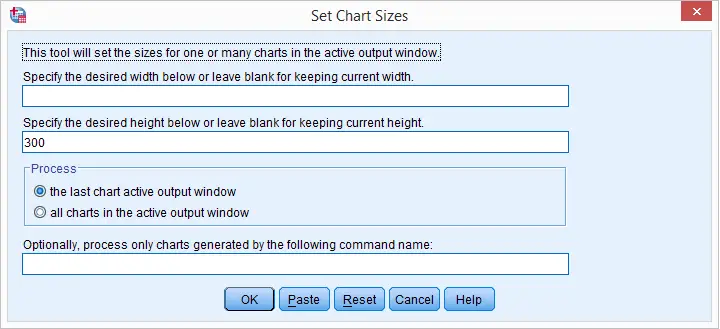
SPSS Set Chart Sizes Tool - How to Use it
- This tool requires SPSS version 18 or higher. For SPSS versions 14 through 17, you can use the syntax version from SPSS Set Chart Sizes with Syntax Tool.
- Before proceeding, make sure you've the SPSS Python Essentials properly installed and running.
- Generate one or many charts.
- Download and install the SPSS Set Chart Sizes Tool. Note that this is an SPSS Extension Bundle.
- Navigate to
 and fill out the dialog that pops up.
 - and run the syntax.
- Note that clicking directs you to the online tutorial you're currently reading.
SPSS Set Chart Sizes Tool - Example 1
Right, let's download and open employees.sav. We'll do so and generate two basic charts by running the syntax below.
frequencies gender/barchart.
GRAPH /HISTOGRAM=date_of_birth /PANEL COLVAR=gender COLOP=CROSS.
Now let's say we want the last chart to be 800 by 400 points. We'll open the Set Chart Sizes dialog under and fill it out as shown below.
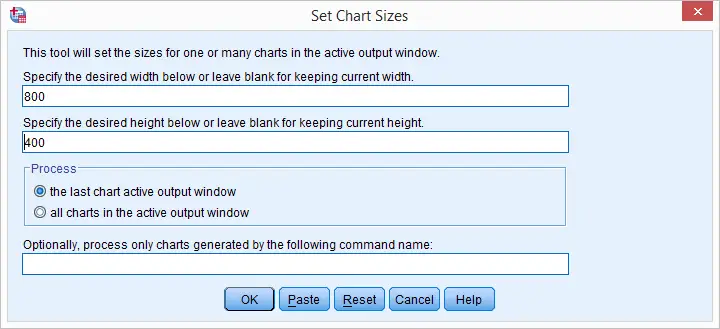
Clicking now results in SPSSTUTORIALS SETCHARTSIZES WIDTH='800' HEIGHT='400' CHARTS='Last' FILTER=''. Running this line of syntax will set the size of the last chart in the active output window to 800 by 400 points.
SPSS Set Chart Sizes Tool - Example 2
Now let's say we want all charts generated by FREQUENCIES to have a height of 300 points. We want to leave the width unaltered. For doing so, we'll fill out the Set Chart Sizes dialog as shown below. Note that the command name is case insensitive: “frequencies”, “FREQUENCIES” or even “fReQuEnCiEs” are all equivalent.
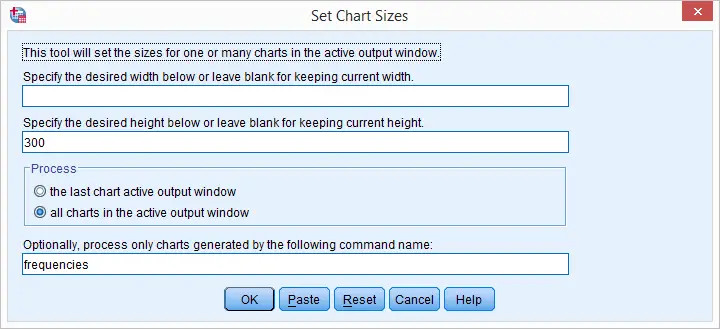
After clicking we now get SPSSTUTORIALS SETCHARTSIZES WIDTH='' HEIGHT='300' CHARTS='All' FILTER='frequencies'. Running this sets the height of all charts in the active output window generated by a FREQUENCIES command to 300 points.
Final Notes
Setting exact chart sizes manually is cumbersome; while changing a chart's width or height, you don't see these values change until you're done (and discover the values are not as desired).
Perhaps more importantly, keep in mind that such manual modifications are not replicable; if you need to rerun (some of) your charts, you'll have to do everything all over again.
A sound way for setting chart sizes is by means of SPSS chart templates. However, we feel that using the tool presented in this tutorial is a much easier and faster alternative.
Thanks for reading!
SPSS Set Decimals Output Tables
SPSS doesn't offer an easy way to set decimal places for output tables. This tutorial proposes a very simple tool for setting decimal places in basic output tables after they've been produced. It works best for simple tables such as DESCRIPTIVES, MEANS or CROSSTABS.
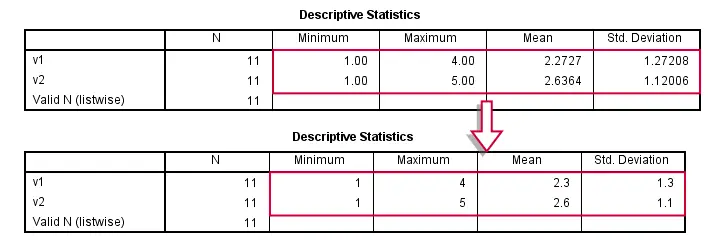
Setting Decimal Places for Output Tables
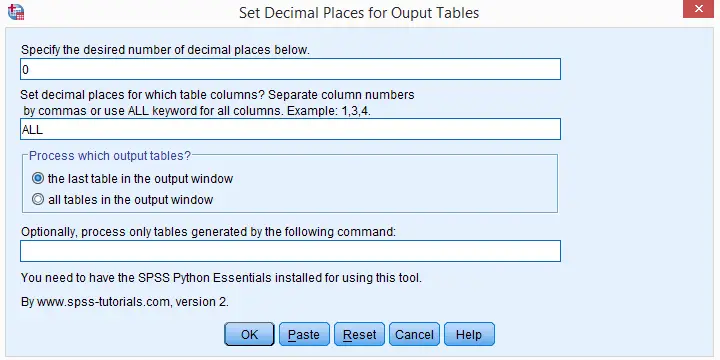
- First, make sure that the SPSS Python Essentials are installed and run properly.
- Download and double click the SPSS Output Decimals Tool to install it. Note that this is an SPSS custom dialog.
- Run one or more tables, for example with DESCRIPTIVES, MEANS or CROSSTABS. Select one or more of them in the output viewer window.
- Go to .
- Choose which columns you'd like to process for all selected tables and the desired number of decimal places.
- Click or and run the syntax.
- Different decimal places for different columns can be set by running the tool repeatedly over the same tables, specifying different columns and decimal places in each run.The syntax example shows how to do this fast.
Specifying Columns
The diagram below illustrates how to specify columns. Note that the first “columns” don't count; according to SPSS pivot table terminology, these are not columns but row labels.This distinction is important for SPSS table templates (.stt files) as well as the Python scripting used by the tool.
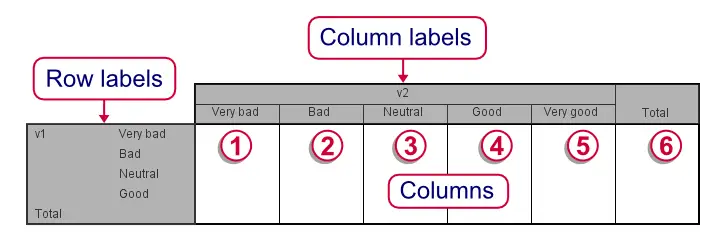
Note that row and column labels are never affected by the Output Decimals tool. Although the diagram shows value labels (“Very bad” and so on) here instead of values, this is not always the case. If values are shown, then decimal places for row and column labels can easily be set by FORMATS.
SPSS Decimal Places in Output - Alternatives
- Since Python was introduced in SPSS version 14, Python scripting is the way to go for setting decimal places for output tables. The level of control it offers is basically unlimited but most users may find Python scripts hard to write and they require a lot of syntax. The output decimals tool uses Python scripting under the hood.
- The classical approach to setting decimal places for output tables is an SPSS script. Note that SPSS scripts (.sbs files) are very different from SPSS syntax (.sps) files. SPSS scripts are considered deprecated since Python scripting was introduced as its successor in SPSS version 14.
- SPSS OUTPUT MODIFY can be used for modifying basically anything about SPSS output tables including decimal places and text styles. Due to its complexity, however, we find it rather hard to get things done with it. Personally, we strongly prefer simpler tools even if they offer less functionality.
SPSS Python Syntax Example
Instead of using the Custom Dialog we just discussed, you may click here for an SPSS Python syntax version of this tool, including some basic tests for our tool.
data list free/id.
begin data
0 0 0 0 0 0 0 0 0 0 0
end data.
do repeat v = v1 to v5.
compute v = rv.binom(5,.5).
end repeat.
************20. GENERATE SOME TABLES.
descriptives v1 v2.
means v1 by v2.
crosstabs v1 by v2/cells column.
************30. DEFINE FUNCTION.
begin program.
def setOutputDecimals(cols,decs):
import SpssClient
SpssClient.StartClient()
outputDoc = SpssClient.GetDesignatedOutputDoc()
outputItems = outputDoc.GetOutputItems()
for index in range(outputItems.Size()):
outputItem = outputItems.GetItemAt(index)
if outputItem.GetType() == SpssClient.OutputItemType.PIVOT and outputItem.IsSelected():
pTable = outputItem.GetSpecificType()
dataCells = pTable.DataCellArray()
for row in range(dataCells.GetNumRows()):
if cols.lower() != 'all':
try:
colList = [int(col) - 1 for col in cols.split(',')] #Because indexed at 0
except:
print "Invalid column specification. Please specify positive integers separated by commas or the 'ALL' keyword."
break
else:
colList = range(dataCells.GetNumColumns())
for col in colList:
try:
dataCells.SetHDecDigitsAt(row,col,decs)
except:
pass
SpssClient.StopClient()
end program.
************40. TEST: SELECT (ONLY) DESCRIPTIVES TABLE IN OUTPUT AND RUN.
begin program.
setOutputDecimals('2,3',0)
setOutputDecimals('4',1)
setOutputDecimals('5',2)
end program.
************50. TEST: SELECT (ONLY) MEANS TABLE IN OUTPUT AND RUN.
begin program.
setOutputDecimals('1',1)
setOutputDecimals('3',2)
end program.
************60. TEST: SELECT (ONLY) CROSSTAB IN OUTPUT AND RUN.
begin program.
setOutputDecimals('all',0)
end program.