 SPSS TUTORIALS
SPSS – Batch Process Files with Python
Running syntax over several SPSS data files in one go is fairly easy. If we use SPSS with Python we don't even have to type in the file names. The Python os (for operating system) module will do it for us.
Try it for yourself by downloading spssfiles.zip. Unzip these files into d:\spssfiles as shown below and you're good to go.
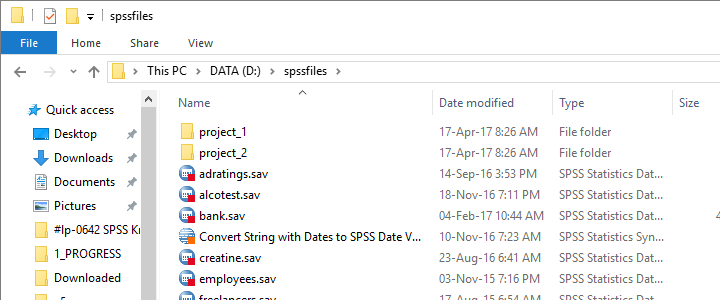
Find All Files and Folders in Root Directory
The syntax below creates a Python list of files and folders in rDir, our root directory. Prefixing it with an r as in r'D:\spssfiles' ensures that the backslash doesn't do anything weird.
begin program.
import os
rDir = r'D:\spssfiles'
print os.listdir(rDir)
end program.
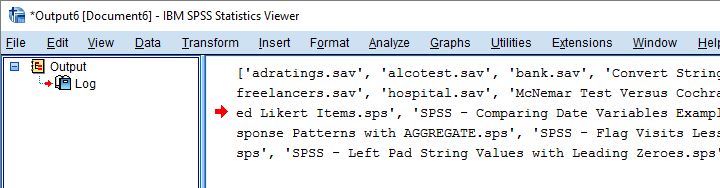
Result
Filter Out All .Sav Files
As we see, os.listdir() creates a list of all files and folders in rDir but we only want SPSS data files. For filtering them out, we first create and empty list with savs = []. Next, we'll add each file to this list if it endswith(".sav").
begin program.
import os
rDir = r'D:\spssfiles'
savs = []
for fil in os.listdir(rDir):
if fil.endswith(".sav"):
savs.append(fil)
print savs
end program.
Using Full Paths for SPSS Files
For doing anything whatsoever with our data files, we probably want to open them. For doing so, SPSS needs to know in which folder they are located. We could simply set a default directory in SPSS with CD as in
CD "d:\spssfiles".
However, having Python create full paths to our files with os.path.join() is a more fool proof approach for this.
begin program.
import os
rDir = r'D:\spssfiles'
savs = []
for fil in os.listdir(rDir):
if fil.endswith(".sav"):
savs.append(os.path.join(rDir,fil))
for sav in savs:
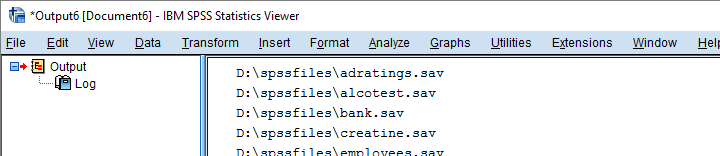
print sav
end program.
Result
Have SPSS Open Each Data File
Generally, we open a data file in SPSS with something like
GET FILE "d:\spssfiles\mydata.sav".
If we replace the file name with each of the paths in our Python list, we'll open each data file, one by one. We could then add some syntax we'd like to run on each file. Finally, we could save our edits with
SAVE OUTFILE "...".
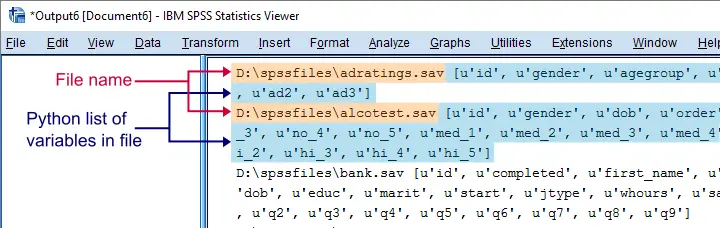
and that'll batch process multiple files. In this example, however, we'll simply look up which variables each file contains with spssaux.GetVariableNamesList().
begin program.
import os,spss,spssaux
rDir = r'D:\spssfiles'
savs = []
for fil in os.listdir(rDir):
if fil.endswith(".sav"):
savs.append(os.path.join(rDir,fil))
for sav in savs:
spss.Submit("GET FILE '%s'."%sav)
print sav,spssaux.GetVariableNamesList()
end program.
Result
Inspect which Files Contain “Salary”
Now suppose we'd like to know which of our files contain some variable “salary”. We'll simply check if it's present in our variable names list and -if so- print back the name of the data file.
begin program.
import os,spss,spssaux
rDir = r'D:\spssfiles'
findVar = 'salary'
savs = []
for fil in os.listdir(rDir):
if fil.endswith(".sav"):
savs.append(os.path.join(rDir,fil))
for sav in savs:
spss.Submit("get file '%s'."%sav)
if findVar in spssaux.GetVariableNamesList():
print sav
end program.
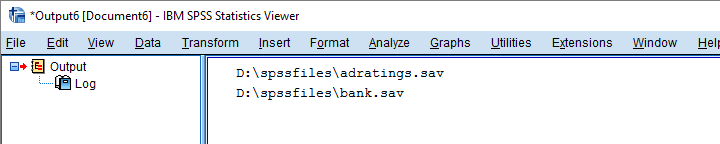
Result
Circumvent Python’s Case Sensitivity
There's one more point I'd like to cover: since we search for “salary”, Python won't detect “Salary” or “SALARY” because it's fully case sensitive. I you don't like that, the simple solution is to convert all variable names for all files to lower()case.
A basic way to change all items in a Python list is
[i... for i in list]
where i... is a modified version of i, in our case i.lower(). This technique is known as a Python list comprehension and the syntax below uses it to lowercase all variable names (line 13).
begin program.
import os,spss,spssaux
rDir = r'D:\spssfiles'
findVar = 'salary'
savs = []
for fil in os.listdir(rDir):
if fil.endswith(".sav"):
savs.append(os.path.join(rDir,fil))
for sav in savs:
spss.Submit("get file '%s'."%sav)
if findVar.lower() in [varNam.lower() for varNam in spssaux.GetVariableNamesList()]:
print sav
end program.
Note: since I usually avoid all uppercasing in SPSS variable names, the result is identical to our case sensitive search.
Thanks for reading.
SPSS with Python – Looping over Scatterplots
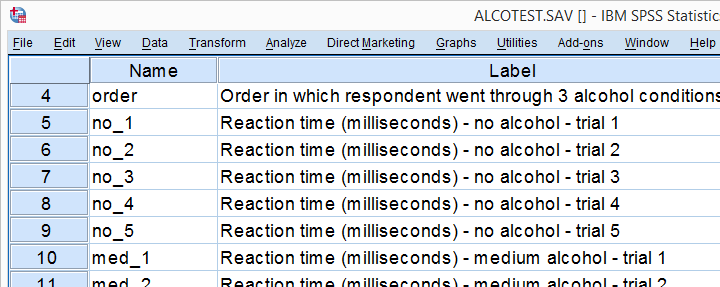
The right way for looping over tables, charts and other procedures in SPSS is with Python. We'll show how to do so on some real world examples. We'll use alcotest.sav throughout, part of which is shown below.
Note that you need to have the SPSS Python Essentials properly installed for running these examples on your own computer.
Example 1: Simple Loop over Bar Charts
We'd like to visualize how mean reaction times are related to the order in which people went through the 3 alcohol conditions. We'll start by generating the syntax for the first chart from the menu as shown below.
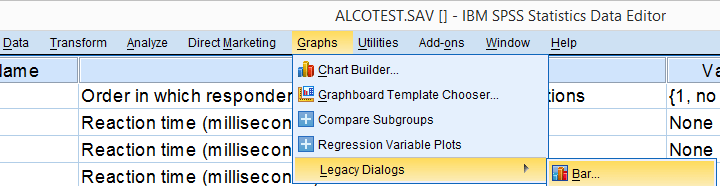
As a rule of thumb, try to use for generating charts. The interface and resulting syntax are wonderfully simple and often result in the exact same charts as the much more complex .
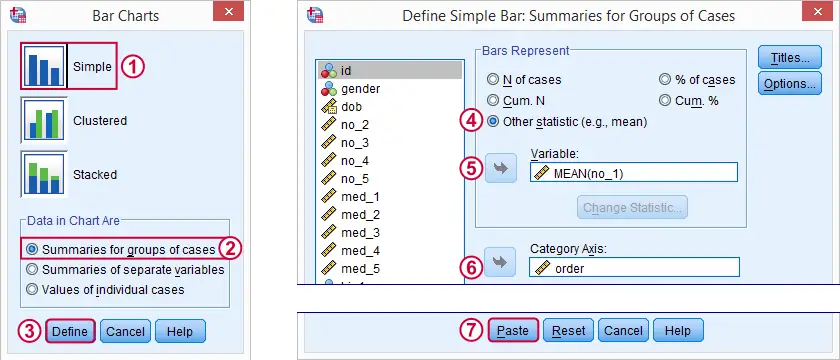
We'll remove all line breaks from the pasted syntax, resulting in
GRAPH /BAR(SIMPLE)=MEAN(no_1) BY order.
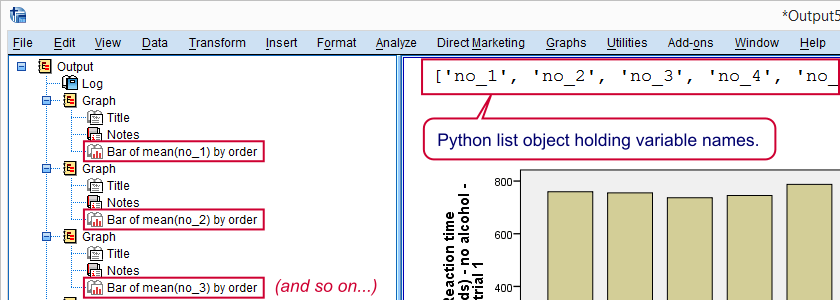
Running this line results the first desired bar chart. For running similar charts over different reaction times, we could copy-paste the line and replace no_1 by no_2 and so on. However, a cleaner way to go is with the Python syntax below.
SPSS Python Loop Syntax 1
begin program.
import spss
varList = ['no_1','no_2','no_3','no_4','no_5']
print varList
end program.
*If variable list ok, loop over it.
begin program.
for var in varList:
spss.Submit('''
GRAPH /BAR(SIMPLE)=MEAN(%s) BY order.
'''%(var))
end program.
Note
You'll probably recognize the bar chart syntax near the end of the second block. The only difference is that the variable name has been replaced by %s. This is a Python string placeholder and it'll be replaced by a different variable name in each iteration.
Result
Example 2: Look Up Variable Names from Data
One thing we don't like about the first example is spelling out the variable names. Python can retrieve them from your data in many ways. An approach that always works is specifying variable names with the SPSS TO and ALL keywords. As shown below, the specification can be expanded into a Python list over which you can loop as desired.
begin program.
import spss,spssaux
varSpec = "no_1 to hi_5" #Specify variables with SPSS TO or ALL keywords
varDict = spssaux.VariableDict(caseless = True)
varList = varDict.expand(varSpec)
varList.sort(key = lambda x: varDict.VariableIndex(x))
print varList
end program.
*If variable list ok, loop over it.
begin program.
for var in varList:
spss.Submit('''
GRAPH /BAR(SIMPLE)=MEAN(%s) BY order.
'''%(var))
end program.
Example 3: Parallel Looping
We'd now like to inspect scatterplots of reaction times of no alcohol versus medium alcohol over each of the 5 trials. Like previously, we'll first generate syntax for just one scatterplot as shown below.
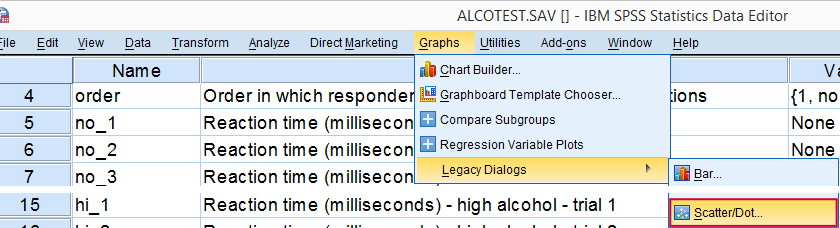
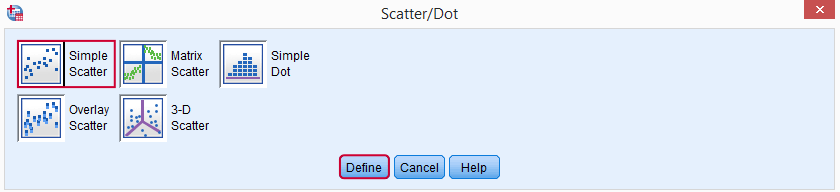
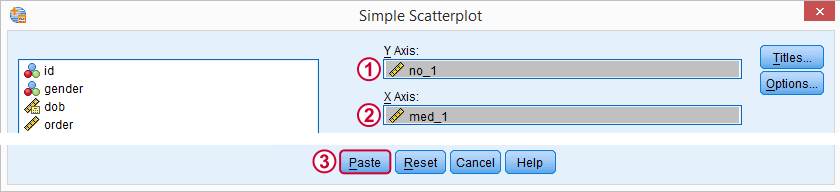
After removing all line breaks, these steps result in GRAPH /SCATTERPLOT(BIVAR)=med_1 WITH no_1 /MISSING=LISTWISE.
Retrieving Variable Names by Pattern
The syntax below sets up two empty Python lists and loops over all variable names in our data. Variable names starting with “no_” are added to one list and those that start with “med_” go into the other. Finally, we'll loop over both lists in parallel for generating our scatterplots.
begin program.
import spss
noVars,medVars = [],[] #set up two empty lists
for varInd in range(spss.GetVariableCount()): #loop over all variable indices
varName = spss.GetVariableName(varInd)
if varName.startswith('no_'): #if pattern in variable name...
noVars.append(varName) #...add to list
elif varName.startswith('med_'):
medVars.append(varName)
print noVars,medVars
end program.
*If variable lists ok, run parallel loop over them.
begin program.
for listInd in range(len(noVars)):
spss.Submit('''
GRAPH /SCATTERPLOT(BIVAR)= %s WITH %s /MISSING=LISTWISE.
'''%(noVars[listInd],medVars[listInd]))
end program.
Note
The second block loops over list indices (“listInd”) that refer to the first, second, ... element in either list. Python then retrieves the first, second, ... variable name from either list with noVars[listInd].
Example 4: Create Variable Names with Concatenation
We'll now show an easier option for our scatterplots that'll work if variable names end in simple numeric suffixes. We'll simply loop over a list holding numbers 1 through 5 (generated by range(1,6)) and concatenate these numbers to the variable name roots.
begin program.
import spss
for varSuffix in range(1,6): #range(1,6) evaluates to [1, 2, 3, 4, 5]
spss.Submit('''
GRAPH /SCATTERPLOT(BIVAR)=no_%(varSuffix)d WITH med_%(varSuffix)d /MISSING=LISTWISE.
'''%locals())
end program.
Note
In Python, %d is a general integer placeholder. It's replaced by some integer number that's specified later.
Alternatively, %(varSuffix)d is replaced by the integer number in varSuffix if %locals() is specified at the end. Using %locals() makes your code more readable and shorter, especially with multiple (text or number) placeholders.
Example 5: Lower Triangular Loop
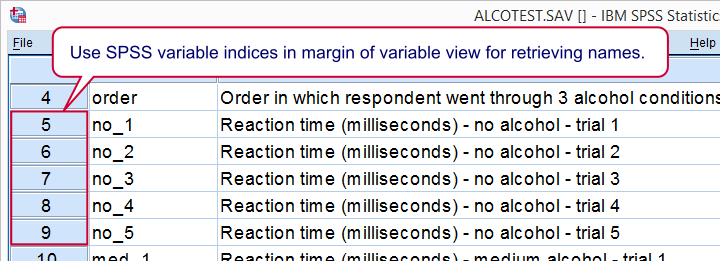
Our final example creates all possible different scatterplots among a set of variables. That is, if we'd run a correlation matrix of these variables, each cell underneath the main diagonal (hence “lower triangle”) is visualized in a scatterplot. This time we'll look up the variable names by their indices under variable view as shown below.
Syntax
begin program.
import spss,spssaux
noVars = spssaux.GetVariableNamesList()[4:9] #variables 5 through 9 in SPSS variable view
print noVars
end program.
*Lower triangular loop.
begin program.
for i in range(len(noVars)):
for j in range(len(noVars)):
if i < j:
spss.Submit('''
GRAPH /SCATTERPLOT(BIVAR)=%s WITH %s /MISSING=LISTWISE.
'''%(noVars[i],noVars[j]))
end program.
Final Note
Explaining every single line of Python code was way beyond the scope of this tutorial. However, with a bit of trial and error (and Google), you can adapt and reuse these examples in your own projects. Or so we hope anyway. Give it a shot. You'll get there.
Thank you for reading.
Regression over Many Dependent Variables
"I have a data file on which I'd like to carry out several regression analyses. I have four dependent variables, v1 through v4. The independent variables (v5 through v14) are the same for all analyses. How can I carry out these four analyses in an efficient way that would also work for 100 dependent variables?"
SPSS Python Syntax Example
begin program.
import spss,spssaux
dependent = 'v1 to v4' # dependent variables.
spssSyntax = '' # empty Python string that we add SPSS REGRESSION commands to
depList = spssaux.VariableDict(caseless = True).expand(dependent) # create Python list of variable names
for dep in depList: # "+=" (below) concatenates SPSS REGRESSION commands to spssSyntax
spssSyntax += '''
REGRESSION
/MISSING PAIRWISE
/STATISTICS COEFF OUTS R ANOVA
/CRITERIA=PIN(.05) POUT(.10)
/NOORIGIN
/DEPENDENT %s
/METHOD=STEPWISE v5 to v14.
'''%dep # replace "%s" in syntax by dependent var
print spssSyntax # prints REGRESSION commands to SPSS output window
end program.
*If REGRESSION commands look good, have SPSS run them.
begin program.
spss.Submit(spssSyntax)
end program.
Description
- That this syntax uses Python so you need to have the SPSS Python Essentials installed in order to run it;
- The syntax will simply run a standard SPSS regression analysis analysis over different dependent variables one-by-one;
- Except for the occurrence of
%s, Python will submit to SPSS a textbook example of regression syntax generated by the GUI. It can be modified as desired. - The TO and ALL keywords may be used for specifying the dependent and independent variables. The entire specification is enclosed in quotes.
- As a test file for this solution, you could use supermarket.sav.
Apply Dictionary Information from Excel
Question
“I have an Excel workbook whose three sheets contain data values, variable labels and value labels. How can I apply the dictionary information from these last two sheets to the SPSS dataset after importing the data values?”
Option A: Python
A nice and clean option is to have Python read the dictionary information from the Excel sheets. The cell contents can then be inserted into standard VARIABLE LABELS and ADD VALUE LABELS commands. Running these commands applies the variable labels and value labels to the data values. We'll use data_and_labels.xls for demonstrating this approach.
1. Read the Data Values
Reading Excel data values into SPSS is straightforward. We usually paste the required syntax from  . The screenshot below shows which options to select.
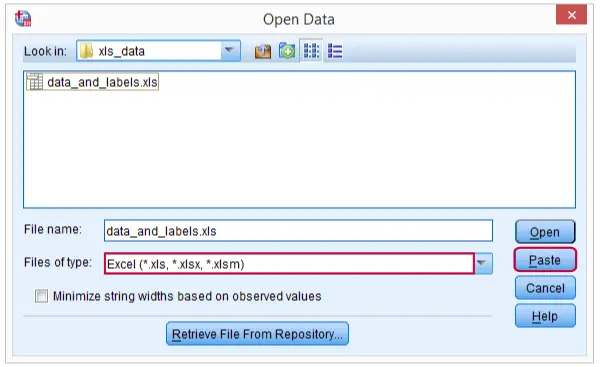 Importing Excel Data into SPSS
SPSS Syntax for Reading Excel Data
GET DATA
/TYPE=XLS
/FILE='D:\Downloaded\data_and_labels.xls'
/SHEET=name 'data'
/CELLRANGE=full
/READNAMES=on
/ASSUMEDSTRWIDTH=32767.
2. Create Variable Labels Command
Let's first open our workbook and take a look at how the second sheet is structured. As shown in the screenshot below, the first column holds variable names and the second variable labels.
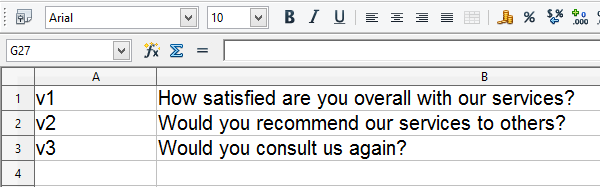 SPSS Variable Labels in Excel
Now we'll read this second sheet with Python instead of SPSS. Note that you need to have the SPSS Python Essentials as well as the xlrd module installed first. The syntax below shows how to create the VARIABLE LABELS commands as a single (multi line) string. For now we'll just print it for inspection.
SPSS Python Syntax Example
begin program.
xlsPath = r'D:\Downloaded\data_and_labels.xls'
import xlrd
varLabCmd = ''
wb = xlrd.open_workbook(xlsPath)
varLabs = wb.sheets()[1]
for rowCnt in range(varLabs.nrows):
rowVals = varLabs.row_values(rowCnt)
varLabCmd += "variable labels %s '%s'.\n"%(rowVals[0],rowVals[1].replace("'","''"))
print varLabCmd
end program.
3. Create Value Labels Command
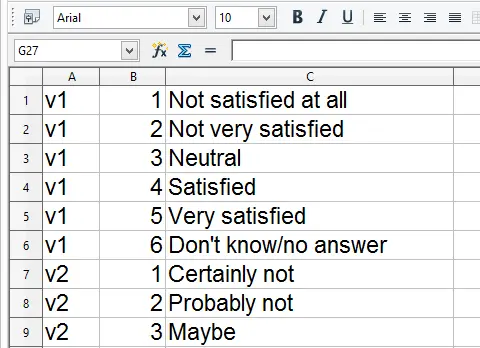 SPSS Value Labels in Excel
Remember that Python objects persist over program blocks. We can therefore leave out the first lines of syntax from the previous example. The Excel sheet holding value labels has the same basic structure as the one with variable labels (see screenshot). The main difference is that we'll now insert three pieces of information (variable name, value, value label) into each line. We'll generate our ADD VALUE LABELS commands as shown below.
SPSS Python Syntax Example
begin program.
valLabCmd = ''
valLabs = wb.sheets()[2]
for rowCnt in range(valLabs.nrows):
rowVals = valLabs.row_values(rowCnt)
valLabCmd += "add value labels %s %d '%s'.\n"%(rowVals[0],rowVals[1],rowVals[2].replace("'","''"))
print valLabCmd
end program.
Running the Python Generated Syntax
If neither of the generated commands require any further tweaking, the only thing left to do is just run them by using spss.Submit. The syntax below does so and thus finishes this job.
begin program.
import spss
spss.Submit(varLabCmd)
spss.Submit(valLabCmd)
end program.
Option B: Syntax Generating Syntax
Before Python was introduced to SPSS, a different approach was needed for this situation. It comes down to declaring a new (long) string variable and using CONCAT to create lines of syntax as string values. Next, we save the contents of this string variable as a .txt file with an .sps extension and INSERT it.
We don't usually recommend taking this approach but we'll present it anyway for the sake of the demonstration. Some of the commands used by the syntax below are explained in SPSS Datasets Tutorial 1 - Basics and SPSS String Variables Tutorial.
SPSS Syntax Generating Syntax
cd 'd:/downloaded'. /*or wherever Excel file is located.
*2. Read data values (pasted syntax from GUI).
GET DATA
/TYPE=XLS
/FILE='data_and_labels.xls'
/SHEET=name 'data'
/CELLRANGE=full
/READNAMES=on
/ASSUMEDSTRWIDTH=32767.
dataset name values.
*3. Read variable labels.
GET DATA
/TYPE=XLS
/FILE='data_and_labels.xls'
/SHEET=name 'variablelabels'
/CELLRANGE=full
/READNAMES=off
/ASSUMEDSTRWIDTH=32767.
dataset name varlabs.
dataset activate varlabs.
string syntax(a1000).
*4. Create syntax in data window.
compute syntax = concat("variable labels ",rtrim(v1),"'",rtrim(replace(v2,"'","''")),"'.").
exe.
*5. Save variable holding syntax as .sps file.
write outfile 'insert_varlabs.sps'/syntax.
exe.
dataset close varlabs.
*6. Import value labels sheet.
GET DATA
/TYPE=XLS
/FILE='data_and_labels.xls'
/SHEET=name 'valuelabels'
/CELLRANGE=full
/READNAMES=off
/ASSUMEDSTRWIDTH=32767.
dataset name vallabs.
dataset activate vallabs.
string syntax(a1000).
*7. Create syntax in data window.
compute syntax = concat("add value labels ",rtrim(v1)," ",ltrim(str(v2,f3)),"'",rtrim(replace(v3,"'","''")),"'.").
exe.
*8. Save syntax variable as .sps file.
write outfile 'insert_vallabs.sps'/syntax.
exe.
dataset close vallabs.
dataset activate values.
*9. Run both syntax files.
insert file = 'insert_varlabs.sps'.
insert file = 'insert_vallabs.sps'.
*10 Optionally, delete both syntax files.
erase file = 'insert_varlabs.sps'.
erase file = 'insert_vallabs.sps'.
Remove Value Label from Multiple Variables
Question
"I'd like to completely remove the value label from a value for many variables at once. Is there an easy way to accomplish that?"
SPSS Python Syntax Example
variables = 'v1 to v5' # Specify variables here.
value = 3 # Specify value to unlabel here.
import spss,spssaux
vDict = spssaux.VariableDict(caseless = True)
varList = vDict.expand(variables)
for var in varList:
valLabs = vDict[vDict.VariableIndex(var)].ValueLabels
if str(value) in valLabs:
del valLabs[str(value)]
vDict[vDict.VariableIndex(var)].ValueLabels = valLabs
end program.
Description
- Since this syntax uses Python, make sure you have the SPSS Python Essentials installed.
- The two things you'll want to modify for using the example on other data are the variables and the value from which the label should be removed. Both are boldfaced in the syntax example.
- Note that the variables can be specified using the TO and ALL keywords.
- One could use supermarket.sav for testing purposes.
SPSS – Creating a Dictionary Dataset
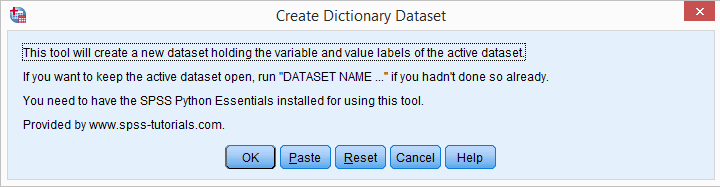
An often requested feature is to export variable and value labels to Excel. This handy tool creates an SPSS Dataset containing these labels. It can either be saved as an Excel sheet or further edited in SPSS.
SPSS Create Dictionary Dataset Tool - How To Use
- Make sure you have the SPSS Python Essentials installed.
- Next, download and install the Dictionary Dataset Tool. Note that this is an SPSS custom dialog.
- Click .
- Click and run the pasted syntax.
- This creates a new dataset called Dictionary_Overview holding all value labels and variable labels.
- Note that the value for all variable labels is (the lowest value found in the dictionary -1). It merely serves as a placeholder for the value label "Variable Label" and should not be taken literally.
- To avoid confusion, display value labels rather than values by clicking the value labels icon (see screenshot below).
- Clicking the tool's button will take you to this tutorial. We very much appreciate your feedback on it.
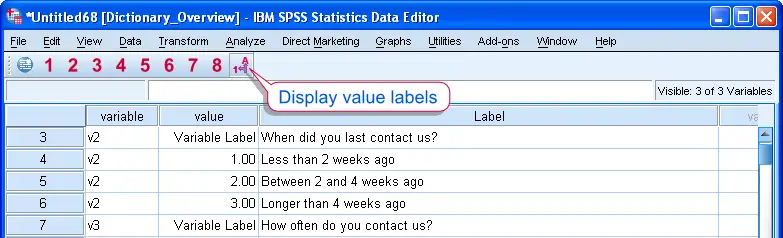 SPSS Dictionary Dataset Tool - Result
Saving the dictionary overview as Excel sheet
Creating a single sheet Excel workbook holding the dictionary information is demonstrated below. Note that it saves value labels rather than values. For more on setting your working directory see Change Your Working Directory.
cd 'd:/temp'.
*Save as Excel sheet.
save translate outfile 'dictionary_overview.xls'
/type xls
/version 8
/fieldnames
/cells = labels.
Final Note
We've had some doubts regarding the optimal output format before we finally went with a single dataset holding all value and variable labels. An alternative we considered was to directly create an Excel workbook with separate sheets for value labels and variable labels. We may offer this as a second version at some point.
Search Syntax Files for Expression
Question
"I found a variable "v_4" in an old data file and I can't remember how exactly I created it. The syntax I used got a bit messy, I have different files and they're in different folders. Is there an easy way to find out which syntax files contain the expression "v_4"?"
SPSS Search Syntax Files Tool
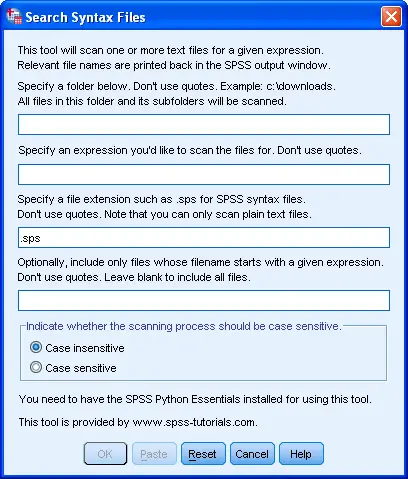 SPSS Search Syntax Files Tool
- Make sure you have the SPSS Python Essentials installed.
- Next, download and install the SPSS Search Syntax Files Tool. Note that this is an SPSS custom dialog.
- Click .
- Specify a folder, a search expression and a file extension.
- Optionally, specify the first character(s) of the file names you'd like to search.
- Click and run the pasted syntax.
- The full paths to all files containing the search expression are printed back in the SPSS output window.
- Clicking the tool's button will take you to this tutorial. We very much appreciate your feedback on it.
Notes
- All files containing plain text can be scanned with this tool. This includes .txt, .html, .csv and .py files.
- Note that MS Word (.doc) and Excel (.xls) files do not contain plain text and therefore can't be scanned by this tool.
- Note that you can copy-paste paths from the SPSS output window into Windows Explorer in order to open files.
Move all Files from Subfolders to Main Folder
Question
"I'd like to work with a number of .sav files but they are scattered over different folders. All file names are unique. Is there any easy way to search through a number of folders for .sav files and move these into some root directory?"
SPSS Python Syntax Example
begin program.
rdir = 'd:/temp' # Specify (empty) test folder.
import spss
for cnt,sdir in enumerate(['','f1','f2','f1/f1_1','f1/f1_2','f1/f1_2/f1_2_1']):
tdir = os.path.join(rdir,sdir)
if not os.path.exists(tdir):
os.mkdir(tdir)
spss.Submit('data list free/id.\nbegin data\n1\nend data.\nsav out "%s".'%(tdir + '/file_' + str(cnt) + '.sav'))
spss.Submit('new fil.')
end program.
*2. Move all .sav files from subfolders into root directory.
begin program.
rdir = 'd:/temp' # Specify root directory to be searched for .sav files.
filelist = []
for tree,fol,fils in os.walk(rdir):
filelist.extend([os.path.join(tree,fil) for fil in fils if fil.endswith('.sav')])
for fil in filelist:
os.rename(fil,os.path.join(rdir,fil[fil.rfind('\\') + 1:]))
end program.
Description
- Note this syntax uses Python so you need to have the SPSS Python Essentials installed in order to run it.
- The first program block will create some random test folders and files in some root directory called "rdir".
- The actual solution in the second program block will search all subfolders for any .sav files and move them directly into the root directory. The result is that all .sav files will be located in a single folder.
What if File Names aren't Unique?
SPSS Python Syntax Example
rdir = 'd:/temp' #Please specify root directory to be searched for .sav files.
filelist = []
for tree,fol,fils in os.walk(rdir):
filelist.extend([os.path.join(tree,fil) for fil in fils if fil.endswith('.sav')])
for cnt,fil in enumerate(filelist):
os.rename(fil,os.path.join(rdir,str(cnt + 1).zfill(2) + '_' + fil[fil.rfind('\\') + 1:]))
end program.
Delete Everything in Root Directory Except Data Files
SPSS Python Syntax Example
begin program.
rdir = 'd:/temp' # Specify root directory.
import shutil
for tree in [path for path in os.listdir(rdir) if not path.endswith('.sav')]:
try:
shutil.rmtree(os.path.join(rdir,tree))
except:
os.remove(os.path.join(rdir,tree))
end program.
Split String Variable into Components
Question
"I have a long string variable in my data that actually holds the answers to several questions. These are separated by a semicolon (";"). How can I split this variable into the original answers?"
SPSS Python Syntax Example
begin program.
import random,spss
random.seed(1)
data = ''
for case in range(10):
val = '"'
for novars in range(random.randrange(12)):
for vallen in range(random.randrange(8)):
val += chr(random.randrange(97,123))
val += ';'
val += '"'
data += val + '\n'
spss.Submit('''data list list/s1(a%s).\nbegin data\n\n%s.'''%(max(len(s) for s in data.split('"')),data))
end program.
*2. Define the function.
begin program.
def stringsplitter(varNam,sep):
import spss,spssaux
varInd = spssaux.VariableDict().VariableIndex(varNam)
stringLengths = []
curs_1 = spss.Cursor(accessType='r')
for case in range(curs_1.GetCaseCount()):
for cnt,val in enumerate(curs_1.fetchone()[varInd].split(sep)):
if not len(stringLengths)>cnt:
stringLengths.append(len(val.strip())) #strip() because SPSS right padding causes excessive lengths otherwise.
elif len(val.strip())>stringLengths[cnt]:
stringLengths[cnt] = len(val.strip())
curs_1.close()
curs_2 = spss.Cursor(accessType='w')
curs_2.SetVarNameAndType([varNam + '_s' + str(cnt + 1) for cnt in range(len(stringLengths))],[1 if leng==0 else leng for leng in stringLengths])
curs_2.CommitDictionary()
for case in range(curs_2.GetCaseCount()):
for cnt,val in enumerate(curs_2.fetchone()[varInd].split(sep)):
curs_2.SetValueChar(varNam + '_s' + str(cnt + 1),val.strip())
curs_2.CommitCase()
curs_2.close()
end program.
*3. Apply the function.
begin program.
stringsplitter('s1',';') #Please specify string variable and separator.
end program.
Description
- Note that this syntax uses Python. You need to have the SPSS Python Essentials installed for using it.
- The first program block will create a test data set containing a single (long) string variable. If you already have your actual data open in SPSS, you may skip it.
- The second program block defines the function that will split up a string variable into components, given some separator. After running this block just once, the function can be used as many times as necessary until the end of your session. This definition is something you'd typically place in a module.
- After the stringsplitter has been defined, only one short line of code is needed to actually use the function. This is demonstrated in the third program block. Note that the name of the input variable comes first, followed by the separator and both are quoted.
- The new variable names are the original variable names, suffixed by "_sn, where n refers to the nth component of the string.
Assumptions
- It is assumed that the to be created variables do not yet exist in the data to which you apply the function. If so, you may first rename them or modify the default prefix ("_s").
- It is assumed that every occurrence of the separator is meaningful. So if the separator is ";" and a string value ";no;;yes;yes;" occurs, it will be split into 6 new variables holding the values (missing),"no",(missing),"yes","yes",(missing). If this is not to your liking, an easy solution may be to apply basic SPSS string functions (most likely RTRIM, LTRIM and REPLACE) to your string before using the splitter.
- Elaborating on the previous point, if a new variable is empty for all cases, it will be an empty string variable with length 1 (ideally it would have length 0 but this is not allowed in SPSS). It is again presumed that the empty values are present in the string for a reason.
Suffix All Variable Names
Question
“I have a data file in which all variables were measured in 2012. I'd like to suffix their names with "_2012". What's the easiest way to do this?”
SPSS Python Syntax Example
variables = 'v5 to v10' #Specify variables to be suffixed.
suffix ='_2012' # Specify suffix.
import spss,spssaux
oldnames = spssaux.VariableDict().expand(variables)
newnames = [varnam + suffix for varnam in oldnames]
spss.Submit('rename variables (%s=%s).'%('\n'.join(oldnames),'\n'.join(newnames)))
end program.
Description
- This syntax will add a suffix to one, many or all variables in your data.
- Variable names can be specified right behind
variables =. - Following SPSS Syntax conventions, variable names should be separated by spaces. The TO and ALL keywords may be used and the entire specification should be enclosed in quotes (''). The desired suffix should be enclosed in quotes as well.
- Next, a suffix can be specified right behind
suffix =. - As a test file for this solution, you could use supermarket.sav.