SPSS TUTORIALS
Descriptive Statistics – One Metric Variable
Introduction
A previous tutorial introduced some summary statistics appropriate for both categorical as well as metric variables. Now it's time to turn to some measures that apply to metric variables exclusively. The most important ones are the mean (or average), variance and standard deviation.
Mean
Most of us are probably familiar with the mean (or average) but we'll briefly review it for the sake of completeness. The mean is the sum of all values divided by the number of values that were added. We can represent this definition by the formula $$\overline{X} = \frac{\sum\limits_{i=1}^n X_i}{n}$$ in which
- \(\overline{X}\) is the mean for variable \(X\);
- \(\sum\limits_{i=1}^n\) means that we sum over all values;
- \(X_i\) is a value from \(X\) and;
- \(n\) is the number of values that we're adding.
Example Calculation Mean
Now let's say we have some variable X1 containing the values 8, 9, 10, 11 and 12. If we fill these out in our formula, we'll see that the mean of these values is 10:
$$\overline{X} = \frac{8 + 9 + 10 + 11 +12}{5} = 10$$
Variance
The variance is the average squared deviation from the mean. We can represent this definition by the formula
$$S^2 = \frac{\sum\limits_{i=1}^n(X_i - \overline{X})^2}{n}$$
The variance is a measure of dispersion; it indicates how far the data values lie apart.
Example Calculation Variance
Let's reconsider variable X1 holding values 8, 9, 10, 11 and 12. If we apply the formula, we'll find that the variance is 2.Statistical software may come up with the value 2.5 here. This is because it divides the sum by (n - 1) instead of n. The difference between the two approaches is beyond the scope of this tutorial but we'll explain it in due time.
$$S^2 = \frac{(8-10)^2 + (9-10)^2 + (...) + (12-10)^2}{5} = 2$$
Now we have a second variable, X2, holding values 6, 8, 10, 12 and 14. How would you describe in words the difference between variables X1 and X2? They both have a mean value of 10. Well, the difference is that the values of X2 lie further apart; that is, X2 has a larger variance than X1.
Variance and Histogram
A variable's variance is reflected by the shape of its histogram. Everything else equal, as the variance increases, the histogram becomes wider and lower. The figure below illustrates this for real data. Each variable has 1,000 observations and a mean of precisely 100. Note that the three histograms use the same scales for their horizontal and vertical axes.
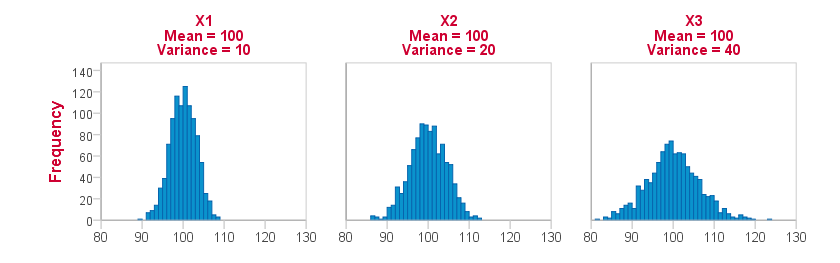 Note how the histograms become lower and wider as variance increases.
Standard Deviation
The standard deviation is the square root of the variance. Its formula is therefore almost identical to that of the variance:
$$S = \sqrt{\frac{\sum_{i=1}^n(X_i - \overline{X})^2}{n}}$$
Just like the variance, the standard deviation is a measure of dispersion; it indicates how far a number of values lie apart.
The standard deviation and the variance thus basically express the same thing, albeit on different scales. So why don't we just use one measure for expression the dispersion of a number of values? The reason is that for some scenarios the standard deviation is mathematically more convenient and reversely for the variance.
Comparing Dichotomous Variables
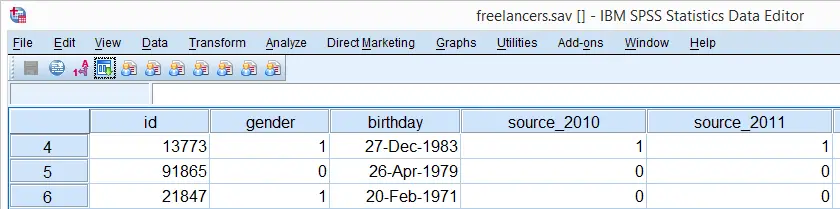
This tutorial shows how to create nice tables and charts for comparing multiple dichotomous variables. If statistical assumptions are satisfied, these may be followed up by a McNemar test (2 variables) or a Cochran Q test (3+ variables). We'll use the freelancers.sav data throughout.
SPSS DESCRIPTIVES Table
The simplest way to compare multiple dichotomous variables is simply running DESCRIPTIVES: as long as 0 and 1 are the only valid values, means will correspond to proportions.If this doesn't hold, RECODE will usually be the easiest fix here.
The syntax below generates a basic descriptives table for source_2010 through source_2014. Note in the result (screenshot below) that the maximum and minimum values are indeed 0 and 1.
descriptives source_2010 to source_2014.
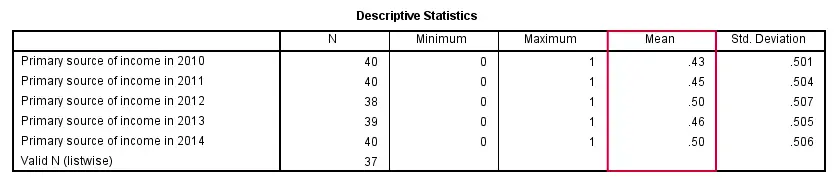
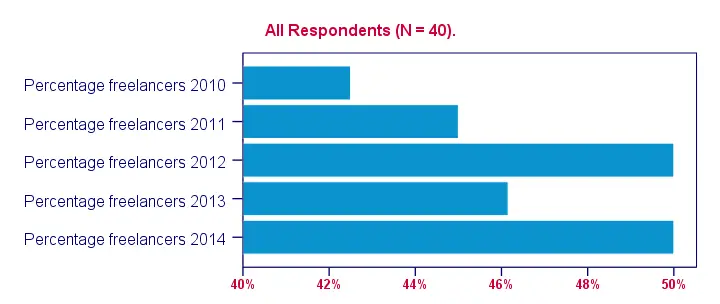
Conclusion: the lowest percentage of freelancers (43%) was observed in 2010, the highest percentages (50%) in 2012 and 2014.
SPSS TABLES Command
Although the previous table is technically correct, it doesn't quite get the message across because value labels are not shown. We may obtain a nicer table by using SPSS TABLES command.TABLES is the predecessor of CTABLES but doesn't require you purchase an extra license. It supposedly doesn't exist in SPSS anymore; it's absent from the menu as well as the command syntax reference. However, it works up to (at least) SPSS version 22. Using it is rather challenging since instructions are not easily obtained. The syntax below shows how to do so. Note that the percentages are (obviously) consistent with the proportions in the previous table.
tables
/format = zero
/ftotal = total
/table = source_2010 + source_2011 + source_2012 + source_2013 + source_2014 by (labels) + total
/statistics = cpct((pct4.1)'')
/title = 'Primary Sources of Income over 2010 - 2014.'.
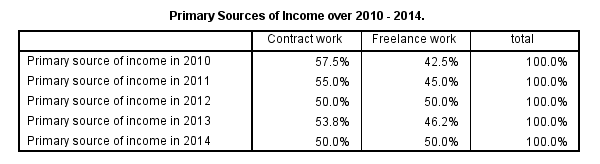 Output from SPSS TABLES Syntax
SPSS Bar Chart for Multiple Variables
A nice way for visualizing the previous tables is a bar chart for multiple variables. The screenshots below walk you through.
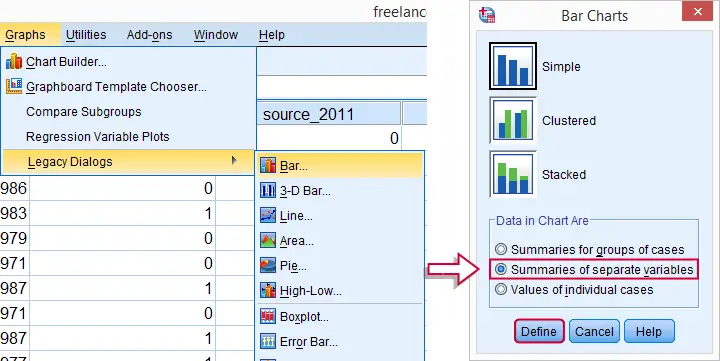
(Note that for older SPSS versions, the graphs under are located directly under .)
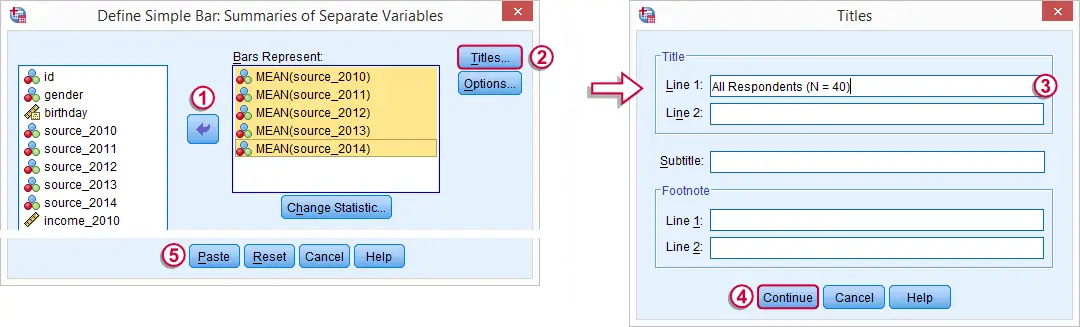
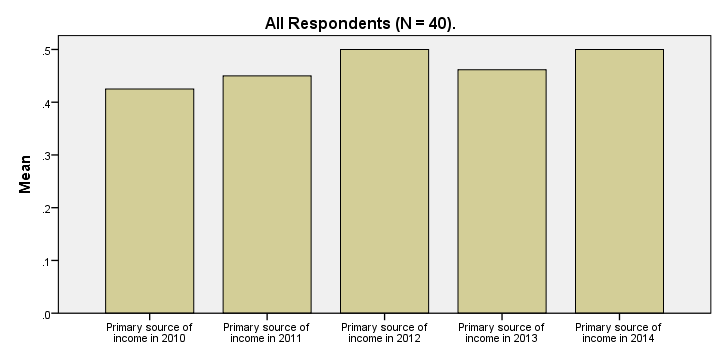
These steps generate the syntax below. The result is shown in the next screenshot.
SPSS Bar Chart for Multiple Variables Syntax
GRAPH
/BAR(SIMPLE)=MEAN(source_2010) MEAN(source_2011) MEAN(source_2012) MEAN(source_2013) MEAN(source_2014)
/MISSING=VARIABLEWISE
/title "All Respondents (N = 40).".
SPSS Bar Chart - Improvements
Our first bar chart -although technically correct- doesn't look nice at all. It doesn't quite convey its message either; all bars look roughly the same and the current variable labels are not very suitable for this chart.
Part of the problem can be solved by modifying our data: the result will be better with different variable labels and percentages instead of proportions. We could change things back after running the chart but a better option is simply closing and reopening the data without saving it. However, The most elegant solution is using TEMPORARY before modifying our data. The syntax below demonstrates how to do so.
temporary.
*2. Adapt variable labels.
variable labels source_2010 "Percentage freelancers 2010".
variable labels source_2011 "Percentage freelancers 2011".
variable labels source_2012 "Percentage freelancers 2012".
variable labels source_2013 "Percentage freelancers 2013".
variable labels source_2014 "Percentage freelancers 2014".
*3. Change 0 and 1 to 0% and 100% for percentages instead of proportions as means.
recode source_2010 to source_2014 (1 = 100).
formats source_2010 to source_2014 (pct4).
*4. Rerun exact same bar chart syntax as previously. This also reverses steps 2 and 3 and indicates end of temporary modifications.
GRAPH
/BAR(SIMPLE)=MEAN(source_2014) MEAN(source_2013) MEAN(source_2012) MEAN(source_2011) MEAN(source_2010)
/MISSING=VARIABLEWISE
/title "All Respondents (N = 40).".
SPSS Bar Chart - Styling
Last but not least, our chart will be much better if we build and apply an SPSS chart template (.sgt file). Like so, we'll transpose (“put on its side”) the chart because it creates space for our variable labels.
Also, we'll have the x-axis run from 40% through 50% in order to “magnify” the differences between years. The result after these (and additional) tweaks is shown in the final screenshot. Note that the didn't modify the syntax for the chart itself in any way.
Comparing Dichotomous or Categorical Variables
Summary
This tutorial shows how to create nice tables and charts for comparing multiple dichotomous or categorical variables. We recommend following along by downloading and opening freelancers.sav.
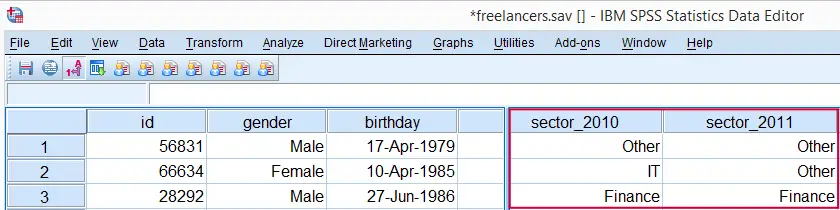
The question we'll answer is in which sectors our respondents have been working and to what extent this has been changing over the years 2010 through 2014. Variables sector_2010 through sector_2014 contain the necessary information.
SPSS Frequency Tables
A simple and straightforward way for answering our question is running basic FREQUENCIES tables over the relevant variables. The syntax below shows how to do so. The next screenshot shows the first of the five tables created like so.
set tnumbers both.
*2. Inspect frequency tables.
frequencies sector_2010 to sector_2014.
SPSS FREQUENCIES Output
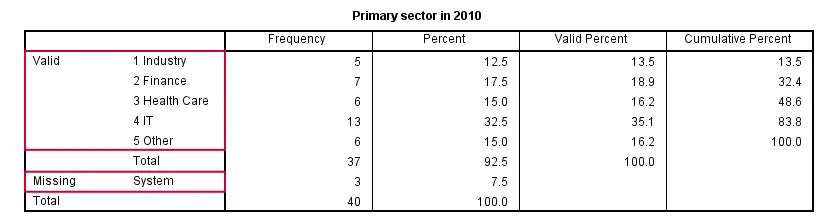
Right, with some effort we can see from these tables in which sectors our respondents have been working over the years. However, these separate tables don't provide for a nice overview. Therefore, we'll next create a single overview table for our five variables.
The table we'll create requires that all variables have identical value labels. Inspecting the five frequencies tables shows that all variables have values from 1 through 5 and these are identically labeled. A final preparation before creating our overview table is handling the system missing values that we see in some frequency tables.
Including System Missing Values
Since we're dealing with nominal variables, we may include system missing values as if they were valid. This keeps the N nice and consistent over analyses. Since the valid values run through 5, we'll RECODE them into 6.
recode sector_2010 to sector_2014 (sysmis = 6).
*2. Apply description to former system missing values.
add value labels sector_2010 to sector_2014 6 '(Unknown)'.
SPSS TABLES Command
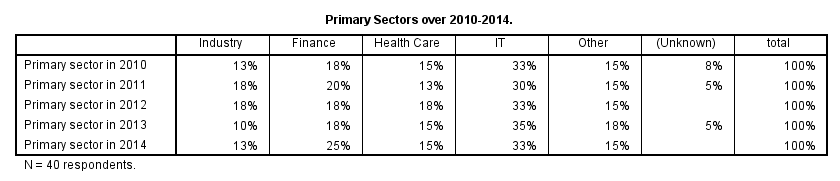
We'll now run a single table containing the percentages over categories for all 5 variables. One way to do so is by using TABLES as shown below. Using TABLES is rather challenging as it's not available from the menu and has been removed from the command syntax reference. We'll therefore propose an alternative way for creating this exact same table a bit later on.
set tnumbers labels.
*2. Frequency table for multiple variables.
tables
/ftotal = total
/table = sector_2010 + sector_2011 + sector_2012 + sector_2013 + sector_2014 by (labels) + total
/statistics = cpct((pct4)'')
/title = "Primary Sectors over 2010-2014."
/caption "N = 40 respondents.".
SPSS TABLES Output Table
SPSS VARSTOCASES Command
At this point, we'd like to visualize the previous table as a chart. A single graph containing separate bar charts for different years would be nice here. However, SPSS can't generate this graph given our current data structure.
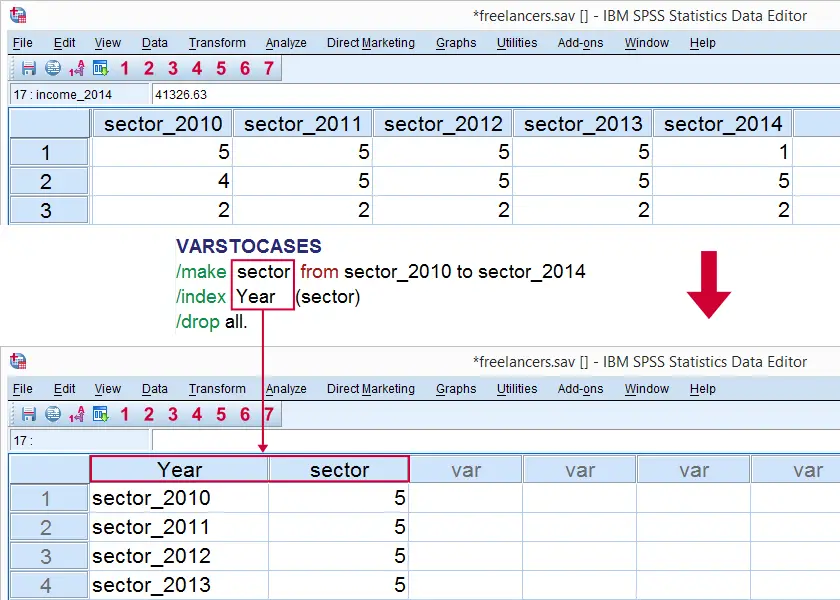
The solution is to restructure our data: we'll put our five variables (sectors for five years) on top of each other in a single variable. A second variable will indicate the year for each sector.
The syntax below shows how to do so with VARSTOCASES. Since we'll focus on sectors and years exclusively, we'll drop all other variables from the original data.
SPSS VARSTOCASES Syntax Example
VARSTOCASES
/make sector from sector_2010 to sector_2014
/index Year (sector)
/drop all.
Result
Additional Data Tweaks
Note that the variable label for sector is no longer correct after running VARSTOCASES; it's no longer limited to 2010. The first step in the syntax below will fixes this.
Also, note that year is a string variable representing years. We may chop off “sector_” from all values by using SUBSTR in order to clean it up a bit. This will make subsequent tables and charts look much nicer.
variable labels sector "Primary Sector".
*2. Chop off "sector_" from year.
compute year = char.substr(year,index(year,'_') + 1).
SPSS CROSSTABS Table
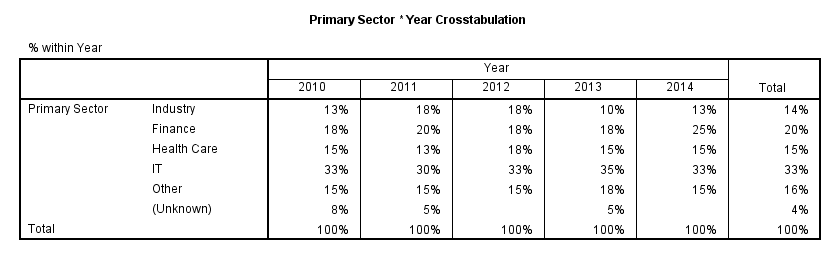
Since we restructured our data, the main question has now become whether there's an association between sector and year. Although year is metric, we'll treat both variables as categorical.
A contingency table generated with CROSSTABS now sheds some light onto this association. Note that the results are identical to the TABLES and FREQUENCIES results we ran previously.
crosstabs sector by year/cells column.
SPSS CROSSTABS Output
SPSS Split Bar Chart
Restructuring out data allows us to run a split bar chart; we'll make bar charts displaying frequencies for sector for our five years separately in a single chart. The screenshot below walks you through.
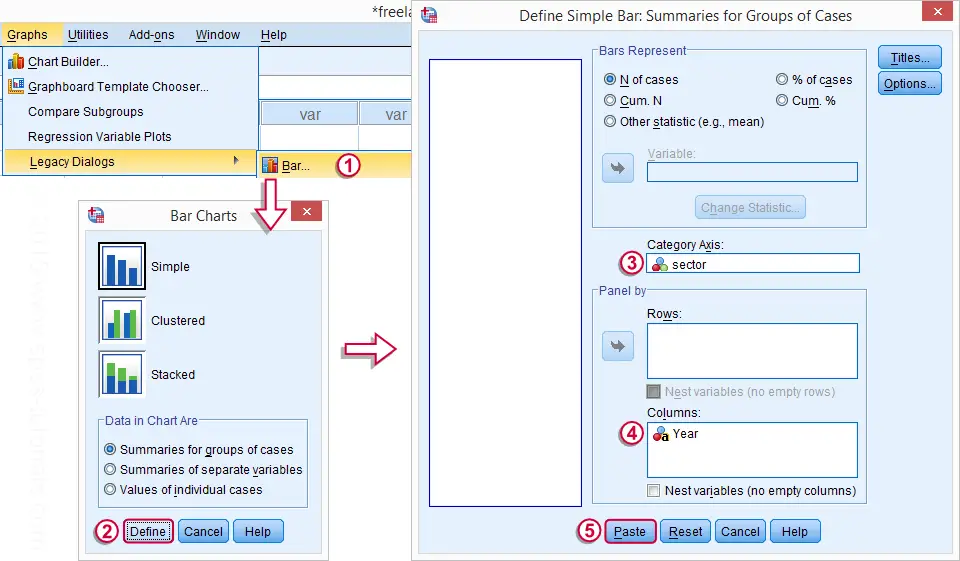
When running the syntax for this chart, the variable label of year will be shown above the chart. We don't want this but there's no easy way for circumventing it. The solution here is changing the variable label to a title for our chart and we do so by adding step 2 to our chart syntax below. Preceding it with TEMPORARY (step 1), circumvents the need to change back the variable label later on.
SPSS Split Bar Chart Syntax
temporary.
*2. Abuse variable label as title for chart.
variable labels Year "Primary Sectors by Year (N = 40)".
*3. Run chart and change back variable label.
GRAPH
/BAR(SIMPLE)=COUNT BY sector
/PANEL COLVAR=Year COLOP=CROSS.
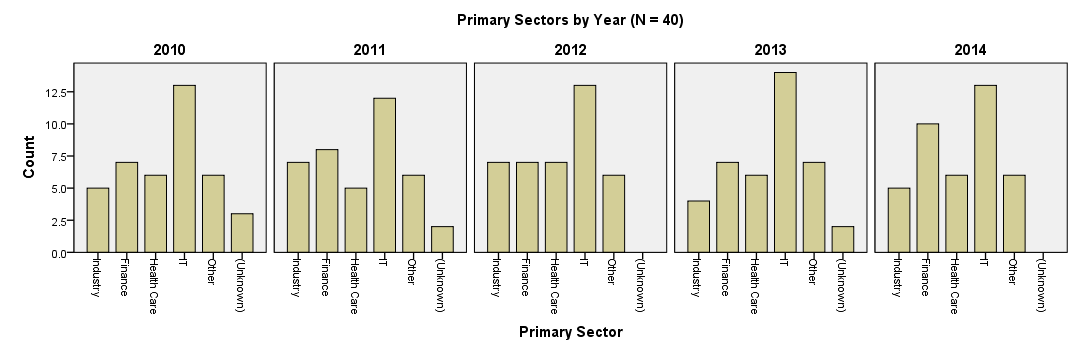
SPSS Split Bar Chart
Conclusion
Our chart visualizes the sectors our respondents have been working in over the years. However, the chart doesn't look very pretty and its layout is far from optimal. Creating an SPSS chart template for it can do some real magic here but this is beyond our scope now.
For rounding up with a bit of an anti climax, we don't observe any outspoken association between primary sector and year.
Comparing Metric Variables
Summary
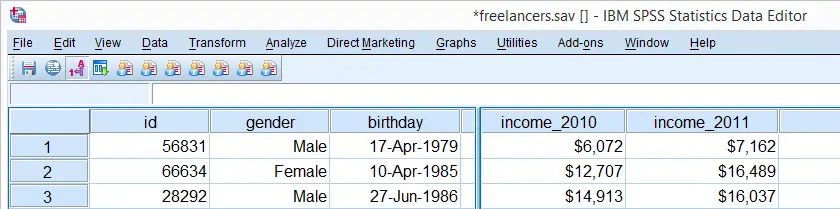
This tutorial shows how to create proper tables and means charts for multiple metric variables. If statistical assumptions are satisfied, these may be followed up by a repeated measures ANOVA. We'll use income 2010 through income_2014 from freelancers.sav throughout this tutorial.
SPSS FREQUENCIES for Inspecting Histograms
We'll first inspect the data in income_2010 through income_2014 by running basic histograms. This is done very easily with FREQUENCIES as shown in the syntax below.
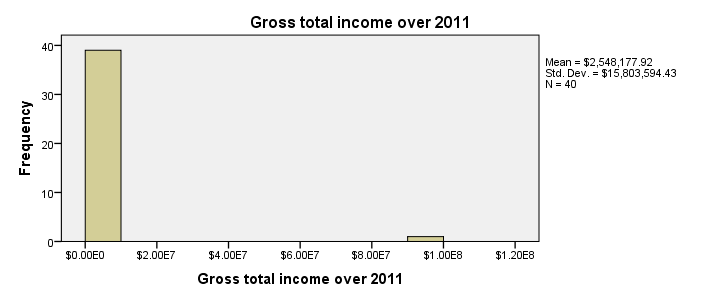
Note in the output viewer window that some of the histograms look very weird due to extreme values.
SPSS FREQUENCIES Syntax for Histograms
frequencies income_2010 to income_2014
/format notable
/histogram.
Specifying User Missing Values
Note that some extreme values occur in the data. These presumably don't reflect actual yearly incomes but rather codes to indicate missing values. We'll specify them as user missing values with the syntax below. Reinspecting the histograms shows that the remaining values show plausible distributions.
missing values income_2010 to income_2014 (99999997 thru hi).
*2. Rerun histograms. Results now look ok.
frequencies income_2010 to income_2014
/format notable
/histogram.
SPSS DESCRIPTIVES Table
The basic answer to our question regarding the comparison of mean incomes over years is answered by a basic DESCRIPTIVES table. Because it tends to have excessive decimal places, we'll suppress those by hiding the decimals or our values with FORMATS.
A nicer alternative here is a very simple tool, discussed in Set Decimals for Output Tables Tool. However, we'll stick with our quick and dirty solution for now.
SPSS DESCRIPTIVES Syntax
formats income_2010 to income_2014 (dollar8).
*2. Run descriptives table.
descriptives income_2010 to income_2014.
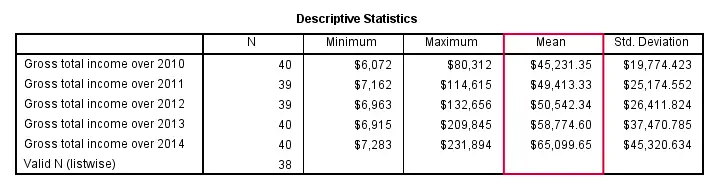
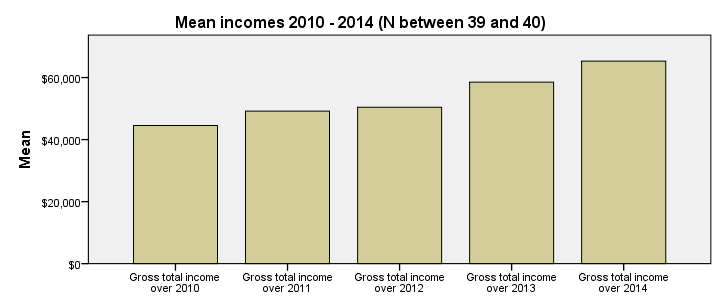
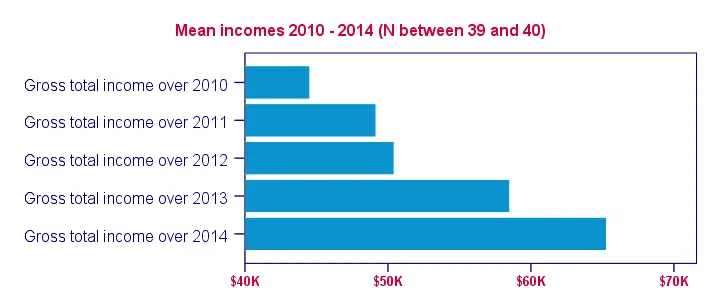
Conclusion: mean yearly incomes seem to gradually rise over the years. Starting from $45,000,- they increase with some $5,000,- per year on average.
SPSS Bar Chart for Multiple Variables
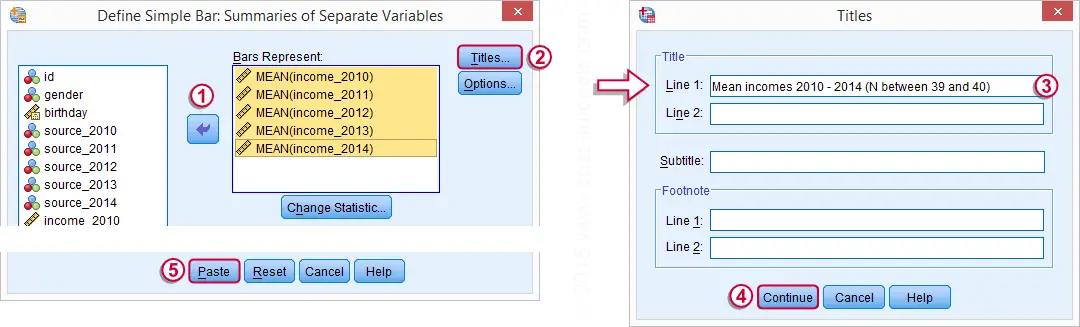
We'd now like to visualize these mean incomes with a chart. An appropriate choice here is a bar chart, as basic version of which is utterly easy to construct. The screenshots below walk you through.
In the left window of the screenshot below, select income_2010 through income_2014 by using Shift. Move the variables to . By default, SPSS will presume you want to plot the means (rather than some other statistic) of selected variables so this section doesn't need further editing.
SPSS Bar Chart for Multiple Variables Syntax
Completing the steps shown in the previous screenshots results in the syntax below. Running it creates the desired bar chart.
GRAPH
/BAR(SIMPLE)=MEAN(income_2010) MEAN(income_2011) MEAN(income_2012) MEAN(income_2013) MEAN(income_2014)
/MISSING=LISTWISE
/TITLE='Mean incomes 2010 - 2014 (N between 39 and 40)'.
Styling the Bar Chart
The bar chart we've come up with so far provides insight into the mean incomes over 2010 through 2014. However, it could use some styling. The best way for doing so is building and applying an SPSS chart template (.sgt) file.
In order to create more space for the variable labels, our chart template transposes (“puts on its side”) the chart. Since this reverses the order of the variables in our chart, it's nice to circumvent this out by also reversing the variable order in the chart syntax as shown below.
Second, we'd like to display $40,000,- as $40 K. We can set “K” as a suffix for the x-axis with our chart template. DO REPEAT provides a fast way for dividing the data values of the income variables by 1000. We don't need to reverse this if we precede it with TEMPORARY.
Finally, we can highlight differences in mean income by having the x-axis run from 40 (now representing $40,000,-) through 70. We'll do so with our chart template as well. After adding minor additional tweaks, the screenshot below shows our final result.
SPSS Bar Chart Syntax Example
temporary.
*2. Divide income_2010 through income_2014 by 1000.
do repeat income = income_2010 to income_2014.
compute income = income / 1000.
end repeat.
*3. Reverse order of variables and rerun graph. This reverses previous data modification as well. Transpose chart with SPSS chart template.
GRAPH
/BAR(SIMPLE)=MEAN(income_2014) MEAN(income_2013) MEAN(income_2012) MEAN(income_2011) MEAN(income_2010)
/MISSING=LISTWISE
/TITLE='Mean incomes 2010 - 2014 (N between 39 and 40)'.
SPSS Bar Chart - Final Result
Analyzing Categorical Variables Separately
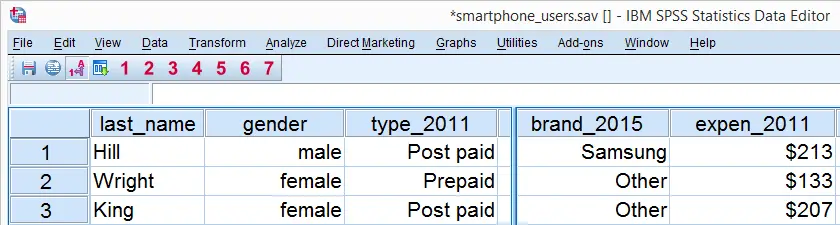
When analyzing your data, you sometimes just want to gain some insight into variables separately. The first step in doing so is creating appropriate tables and charts. This tutorial shows how to do so for dichotomous or categorical variables. We recommend you follow along by downloading and opening smartphone_users.sav.
SPSS Frequency Tables
We'd like to know which smartphone brands were most popular in 2011. Our data contains a variable brand_2011 holding the relevant data. Since this is a categorical variable, a suitable table here is a simple frequency table as obtained with FREQUENCIES. The syntax below shows how to run it.
set tnumbers labels tvars labels.
*2. Create frequency table.
frequencies brand_2011.
Result
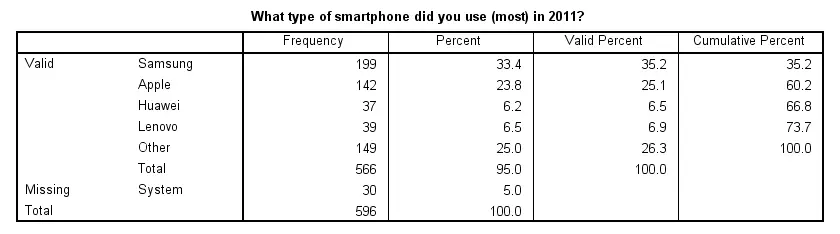
Note that there's some system missing values. Presuming these occurred due to respondents not using a smartphone in the first place, we'll report the figures under “Percent”. Conclusion: in 2011, 33% of our respondents used a Samsung smartphone, making it the most popular brand during that year.
SPSS Bar Charts for Categorical Variable
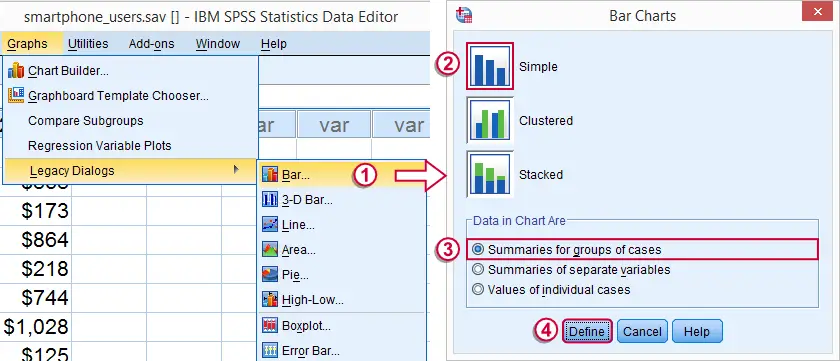
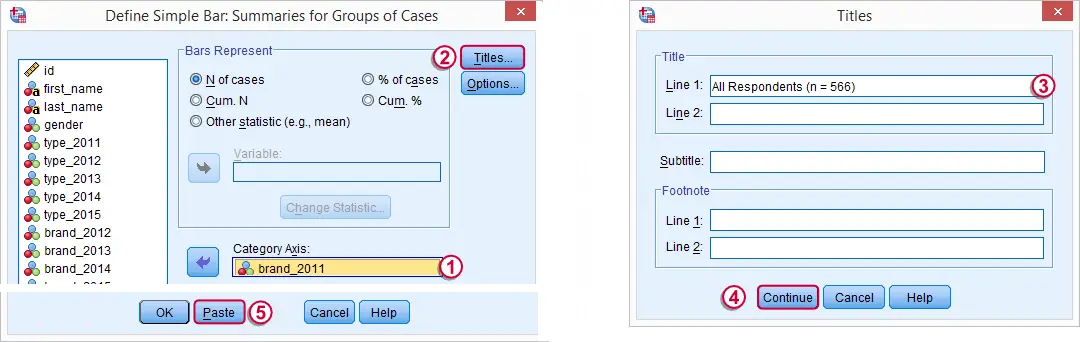
Our frequency table provides us with the necessary information but we need to look at it carefully for drawing conclusions. Doing so is greatly facilitated by creating a simple bar chart with bars representing frequencies. The fastest way to do so is including it in our FREQUENCIES command but this doesn't allow us to add a title. We'll therefore do it differently as shown by the screenshots below.
SPSS Bar Chart Syntax Example
GRAPH
/BAR(SIMPLE)=COUNT BY brand_2011
/title 'All Respondents (n = 566)'.
Result
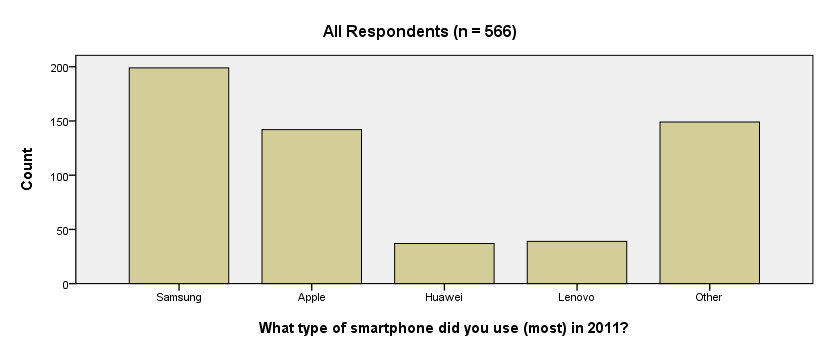
We now have our basic bar chart. For a serious report, however, you probably want a better looking chart. A great way for prettifying charts is discussed in SPSS Chart Templates - Quick Introduction.
System Missing Values
Thus far, we simply ignored the system missing values we saw in our frequency table. For nominal variables, an alternative approach is including them as just another answer category. The syntax below does just that for all brand variables. We'll first inspect which values are present. Next, we'll RECODE system missing values into a value that wasn't present yet. In our case that will be 6.
SPSS RECODE Syntax Example
set tnumbers both.
*2. Inspect which values are present in brand variables.
frequencies brand_2011 to brand_2015.
*3. Change system missing values to 6.
recode brand_2011 to brand_2015 (sysmis = 6).
*4. Apply value label to new value.
add value labels brand_2011 to brand_2015 6 '(No answer)'.
*5. Show only value labels in output tables.
set tnumbers labels.
*6. Rerun frequency tables.
frequencies brand_2011 to brand_2015.
Result
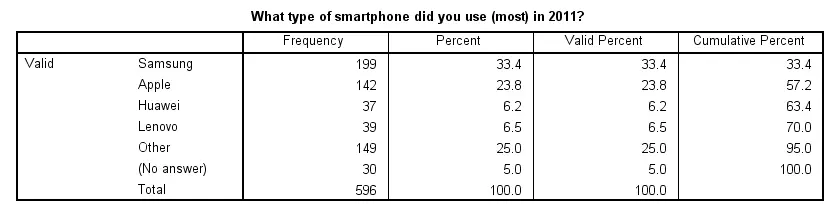
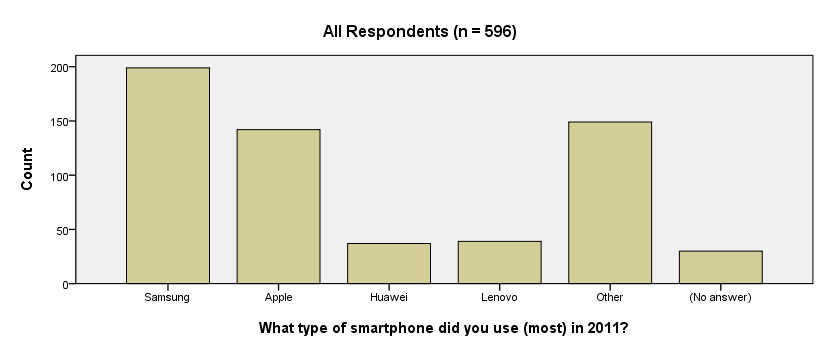
Note that our frequency table no longer includes any missing values. They've been converted to 6, which is labeled “(No answer)” and occurs 30 times for this variable.
We see that recoding system missing values make our frequency tables look better but there's another advantage: because the brand variables don't contain missing values anymore, their bar charts will all be based on the same number of respondents. This circumvents the need for specifying different numbers of respondents in their titles; we can create them very easily by copy-pasting-editing the syntax we used previously. The syntax below illustrates the idea.
SPSS Bar Charts Syntax Example
GRAPH /BAR(SIMPLE)=COUNT BY brand_2011 /TITLE='All Respondents (n = 596)'.
GRAPH /BAR(SIMPLE)=COUNT BY brand_2012 /TITLE='All Respondents (n = 596)'.
GRAPH /BAR(SIMPLE)=COUNT BY brand_2013 /TITLE='All Respondents (n = 596)'.
Result