 SPSS TUTORIALS
SPSS – How to Set Missing Values from Syntax?
Introduction & Practice Data File
When working with SPSS, specifying missing values correctly is often an essential step in analyzing data. This tutorial demonstrates how to set missing values the right way.
Setting Missing Values in SPSS
- Perhaps unsurprisingly, missing values can be specified with the
MISSING VALUEScommand. - A thing to note, however, is that missing values can be specified for multiple variables at once.
- Second, missing values may be specified as a range. If a range is used, a single discrete missing value can be added to it.
- The syntax example below gives some examples of this.
SPSS Missing Values Syntax Examples
(The test data used by the syntax below are found here.)
missing values married(4,5).
*2. Specify a range (1,000,000 and upwards) as missing values for "income".
missing values income (1000000 thru hi).
*3. Specify 2 as missing value for variables q1 through q3.
missing values q1 to q3 (2).
Changing Columns in SPSS
- Columns refers to how wide a variable column is displayed on screen. It can be set by the
VARIABLE WIDTHcommand. - This may be confusing since this does not refer to the "width" (length) of a variable as explained under variable width.
- Although setting columns doesn't affect your actual data, it's of minor importance. For the sake of completeness, the syntax example below demonstrates the command.
SPSS Variable Width Syntax Example
(The test data used by the syntax below are found here.)
variable width q1 to q3 (50).
Changing Variable Alignment in SPSS
- Variable alignment refers to how data values are aligned within their columns. The options are "left", "centered" or "right".
- As in MS Excel, the default settings are left for string variables and right for numeric variables.
- These can be overridden by the
VARIABLE ALIGNMENTcommand as demonstrated below.
SPSS Variable Align Syntax Example
(The test data used by the syntax below are found here.)
variable alignment q1 to q3 (center).
Changing Measurement Levels in SPSS
- On a personal note, we feel the Measure property for setting measurement levels is rather useless. This is something that users - not software - should be aware of and take into account when analyzing data.
- Regretfully, some commands (most notably
CTABLES) are actually affected by the measurement levels as specified by the user. - In this case, the
VARIABLE LEVELcommand can be used for setting them to nominal, ordinal or scale (for metric variables).
SPSS Variable Level Syntax Example
(The test data used by the syntax below are found here.)
variable level birthday(scale) married(ordinal) q1 to q3 (nominal).
Changing Roles in SPSS
- Just as with Measure, we feel the "Role" property is rather useless and had perhaps better be removed from SPSS.
- For the sake of completeness, it can be modified as demonstrated below.
SPSS Variable Role Syntax Example
(The test data used by the syntax below are found here.)
variable role
/input married
/target income
/both q1 to q3.
SPSS Date Calculations – A Quick Tutorial
Introduction & Practice Data File
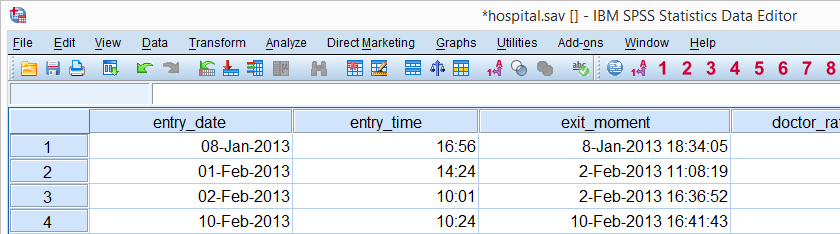
SPSS date calculations are pretty straightforward. Just make sure you understand a handful of basics and keep it clean and simple. This tutorial shows you how to do just that. We'll use hospital.sav -shown below- throughout.
SPSS Main Date Functions
The table below shows SPSS’ main date functions. We'll show how to use them on a couple of examples below.
| Function | Use | Example | Returns |
|---|---|---|---|
| DATEDIFF | Compute difference between two dates in given time unit | datediff(date1,date2,'days') | Standard numeric value |
| DATESUM | Add / subtract number of given time units to date variable | datesum(date,10,'days') | Date value |
| XDATE | Extract date component from date variable | xdate.month(date) | Standard numeric value |
| DATE.DMY | Create date value from day, month, year | date.dmy(19,3,2015) | Date value |
SPSS DATEDIFF Function
SPSS DATEDIFF returns the number of time units
(such as hours, days or years) between two date values.
For instance, how many days ago did our respondents enter the hospital? We'll answer that by subtracting entry_date from the current date. The syntax below does just that.
compute today = $time.
execute.
*2. Show current date in date format.
formats today(edate10).
*3. Compute
compute days_ago = datediff(today,entry_date,'days').
execute.
*4. Don't show any decimal places.
formats days_ago(f4).
Result
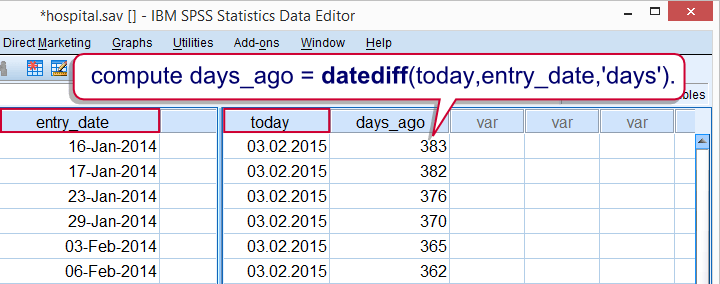
Simple as that. Just one thing to keep in mind is that DATEDIFF truncates (rounds down) its outcome values. So 2 years and 363 days are returned as 2 years and 0 days if years are chosen as the time unit.
If you don't want that, extract the number of days between 2 dates and divide them by 365.25 like we did in How to Compute Age in SPSS?
SPSS DATESUM Function
SPSS DATESUM adds a number of time units to a date variable.
For subtracting time, just enter a negative value.
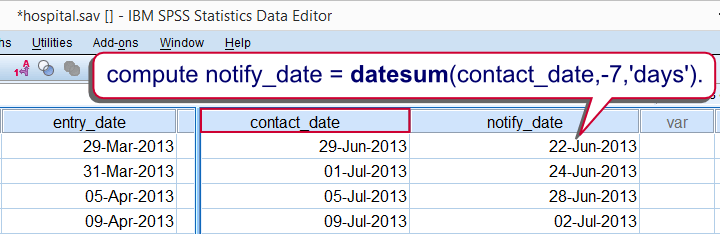
So say I want to contact respondents 3 months after they entered the hospital. However, 7 days before contacting them, they should be sent a notification. The syntax below shows how to add both dates to our data.
compute contact_date = datesum(entry_date,3,'months').
execute.
*2. Show time values as dates.
formats contact_date(date11).
*3. Subtract 7 days from contact_date as notify_date.
compute notify_date = datesum(contact_date,-7,'days').
execute.
*4. Show time values as dates.
formats notify_date(date11).
Result
SPSS XDATE Function
SPSS XDATE extracts a date component
(such as an hour, day or year) from a date.
For example, the syntax below first extracts the year from entry_date and then the month.
compute year = xdate.year(entry_date).
execute.
*2. Extract month from date.
compute month = xdate.month(entry_date).
execute.
*3. Hide decimals.
formats year month(f4).
*4. Apply value labels to month.
value labels month 1 'January' 2 'February' 3 'March' 4 'April' 5 'May' 6 'June' 7 'July' 8 'August' 9 'September' 10 'October' 11 'November' 12 'December'.
Result
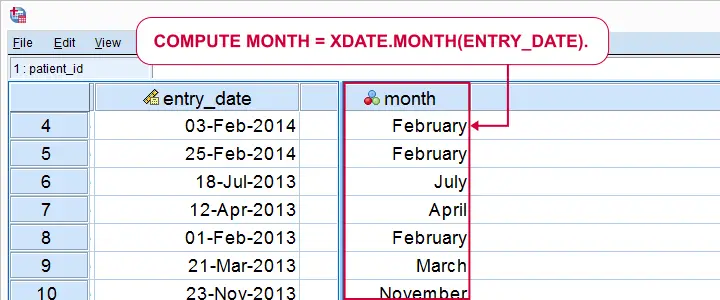
Again, it's as simple as that. An important warning, however, is that XDATE.WEEK returns nonsensical week numbers as discussed in SPSS Computes Wrong Week Numbers? Unfortunately, there's no easy way to extract the ISO week numbers that you probably want. We built an SPSS-Python tool for it but it somehow stopped working around SPSS version 24.
Another thing to keep in mind is that there's no such thing as XDATE.DAY. Instead, use
- XDATE.MDAY for the day of the month (1 through 31);
- XDATE.WKDAY for the day of the week (1 through 7 where 1 is Sunday, not Monday);
- XDATE.JDAY for the day of the year (1 through 366).
SPSS DATE.DMY Function
SPSS DATE.DMY creates a date from its components
such as day, month and year.
So say I want to know how many days before 20 January 2015 patients entered the hospital. I'll just create a new date variable (or -rather- constant) holding this date and subtract it from entry_date.
compute start_date = date.dmy(20,1,2015).
execute.
*2. Show start_date as date.
formats start_date (date11).
*3. Compute days before start of data analysis.
compute days_passed = datediff(start_date,entry_date,'days').
execute.
Result
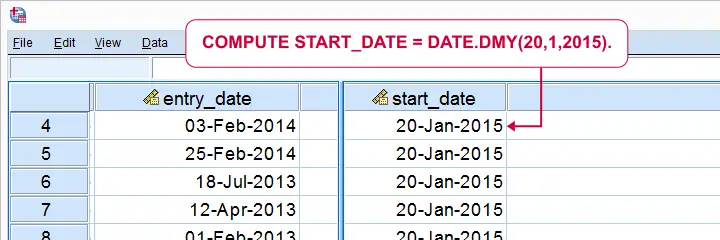
Obviously, DMY means “day, month, year” so that's the order in which we'll enter these date components. Now, in first instance, DATE.DMY results in a variable holding huge numbers. These are the numbers of seconds between the year 1582 and my actual data as explained in SPSS Date Variables Basics.
These huge numbers can be shown as normal dates by setting the appropriate formats. For instance,
FORMATS today (DATE11).
shows a date as “3-Sep-2018”. This is what we recommend because it's unambiguous which date this is. Please
avoid showing dates like “01-02-03”
because this could mean
- 1-Feb-2003 if its format is EDATE8 (European date),
- 2-Jan-2003 if its format is ADATE8 (American date) and
- 3-Feb-2001 if its format is SDATE8 (sortable date).
SPSS Date Comparisons
When we compare two numbers, we can simply ask if one number is larger than the other. The exact same, simple logic holds for date comparisons. However, there's one caveat: although we see “normal dates”, the underlying values (numbers of seconds since the year 1582) are used in date comparisons.
This may sound daunting but the solution is simple: if we want to compare an SPSS date value with some comparison date, we simply
convert the comparison date into an actual SPSS date.
We just saw how to do so easily: fill in the date components into DATE.DMY. We'll demonstrate this with some examples.
Say the hospital got a new CEO on February 20, 2014. We want to know if visits before this date are rated the same as visits after this date. We'll now select visits on and after February 20, 2014.
SPSS Date Comparison Example I
compute ceo = 0.
*2. If entry date is at least February 20th., 2014, entry during new CEO.
if (entry_date >= date.dmy(20,2,2014)) ceo = 1.
execute.
*3. Hide unnecessary decimals.
formats ceo(f1).
*4. Add value labels to new variable.
value labels ceo 0 'entry_date during old CEO' 1 'entry_date during new CEO'.
Result
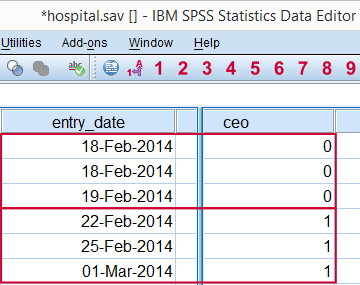 Flagging visits that started on or after February 20, 2014.
SPSS Date Comparison Syntax Example II
The Summer holidays in 2014 were from June 30, 2014 through August 24, 2014. How can we select visits during these holidays? The syntax below shows how to do so easily by using DATE.DMY within RANGE.
compute holidays_2014 = 0.
*2. Change 0 to 1 if visit started during holidays 2014.
if (range(entry_date,date.dmy(30,6,2014),date.dmy(24,8,2014))) holidays_2014 = 1.
execute.
*3. Hide decimals.
formats holidays_2014(f1).
That's basically it for the main DATE calculations in SPSS. We could come up with a million more examples but you'll probably figure them out yourself pretty easily. We hope.
Thanks for reading!
SPSS Computes Wrong Week Numbers?
Wrong Week Numbers - Quick Demo
While working on data holding a record for each day, I wanted to create some graphs on week level. So I extracted the weeks with XDATE.WEEK but the week numbers returned by SPSS are nonsensical: every week starts on January 1 and most years end up with week 53 holding just 1 day.
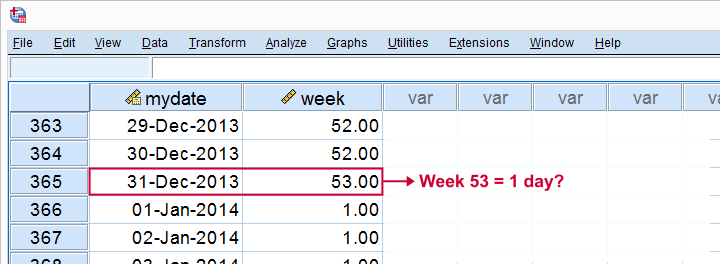
There's different standards for week numbers but I think the very definition of a week is a 7 day time span. The following syntax demonstrates the problem.
SPSS Week Numbers Syntax Example
input program.
loop mydate = 1 to 500.
end case.
end loop.
end file.
end input program.
execute.
*Convert mydate into actual date.
compute mydate = datesum(date.dmy(1,1,2013),mydate - 1,'days').
formats mydate (date11).
*Extract week and year from mydate.
compute week = xdate.week(mydate).
execute.
The result in data view may look normal at first. However, when we scroll down to case 365, we see that week 53 consists of 1 day. Like so, SPSS’ week numbers don't correspond to any conventional standard and can neither be converted into one.
ISO weeks in GoogleDocs
Interestingly, Google sheets has the isoweeknum function returning the ISO weeks I'm looking for. So a “workable solution” seemed to copy-paste these into an SPSS data file. Finally, MATCH FILES by date seemed to do the trick. And then I realized...
In the ISO week system, dates around new year’s can fall into a week from a different year. And unfortunately, GoogleDocs does not provide the years to which weeks belong. The screenshot below attempts to illustrate the problem.
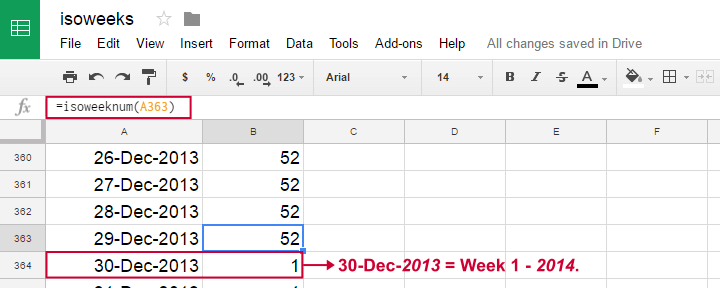
Right. So extracting the year from December 30, 2013 obviously returns 2013. However, it falls in week 1, 2014. And neither SPSS nor GoogleDocs offers a function that'll insert 2014 into my dataset for this date.
Solution
Perhaps a bit of an anti climax but... no solution so far. I could go and look for a huge table holding a long date range and all ISO weeks plus the years in which they fall. And convert it to SPSS. And merge it into several data files. But I'd much rather avoid such an ugly solution.
So... any suggestions anybody? Please drop me a comment below if you've a better idea.
Thanks for reading!
Extract Digits from String Variable
- Inspect Frequency Table
- Extract Leading Digits
- Inspect Which Values Couldn't be Converted
- Inspect Final Results
Recently, one of our clients used a text field for asking his respondents’ ages. The resulting age variable is in age-in-string.sav, partly shown below.
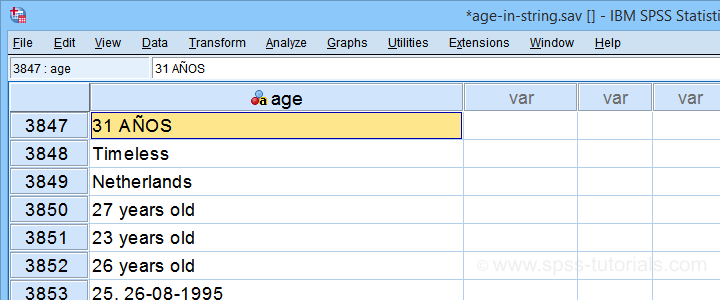
I hope you realize that this looks nasty:
- age is a string variable so we can't compute its mean, standard deviation or any other statistic;
- we can't readily convert age into a numeric variable because it contains more than just numbers;
- a simple text replacement won't remove all such undesired characters.
For adding injury to insult, the data contain 3,895 cases so doing things manually is not feasible. However, we'll quickly fix things anyway.
Inspect Frequency Table
Let's first see which problematic values we're dealing with anyway. So let's run a basic frequency table with the syntax below.
frequencies age
/format dfreq.
Result
If we scroll down our table a bit, we'll see some problematic values as shown below.
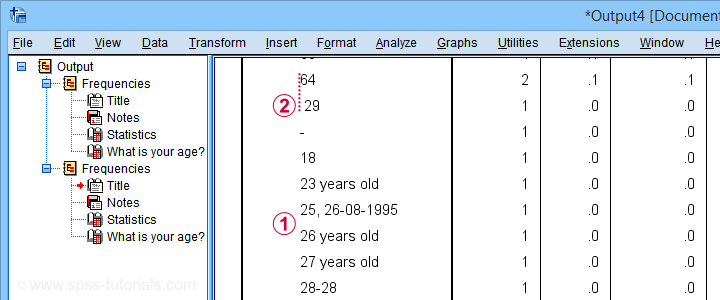
This table shows us 2 important things:
 most values that can be corrected start off with 2 digits;
 at least one value is preceded by a leading space.
Let's first remove any leading spaces. We'll simply do so by running compute age = ltrim(age).
Extract Leading Digits
We'll now extract any leading digits from our string variable with the syntax below.
string nage (a3).
*Loop over characters in age and pass into nage if they are digits.
loop #ind = 1 to char.length(age).
do if(char.index('0123456789',char.substr(age,#ind,1)) > 0).
compute nage = concat(rtrim(nage),char.substr(age,#ind,1)).
else.
break.
end if.
end loop.
execute.
So what we very basically do here is
- we create a new string variable;
- we LOOP through all characters in age;
- we evaluate if each character is a digit: char.index returns 0 if the character can't be found in '0123456789'.
- if the character is a digit (DO IF), we'll add it to the end of our new string variable;
- if the character is not a digit (ELSE), BREAK ends the loop for that particular respondent.
This last condition is needed for values such as “55 and will become 56 on 3/9” We need to make sure that no digits after “55” are added to our new variable. Otherwise, we'll end up with “555639” -an age perhaps only plausible for Fred Flintstone.
Inspect Which Values Couldn't be Converted
Let's now inspect which original age values could not be converted. We'll rerun our frequency distribution but we'll restrict it to respondents whose new age value is still empty.
temporary.
select if (nage = '').
*Check which age values weren't converted yet.
frequencies age
/format dfreq.
Result
Surprisingly, a quick scroll down our table shows that we can reasonably convert only a single unconverted age value: “Will become 56 on the 3rd of September:-)”
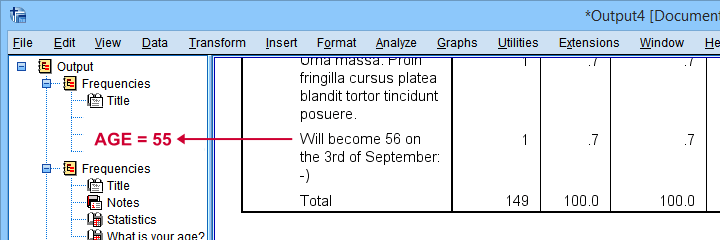
It is probably safe to infer from this statement that this person was 55 years old at questionnaire completion. We'll set his age to 55 with a simple IF command. We'll then run a quick final check.
if(char.index(age,'Will become 56') > 0) nage = '55'.
*Recheck which age values weren't converted yet.
temporary.
select if (nage = '').
frequencies age
/format dfreq.
Final Frequency Table
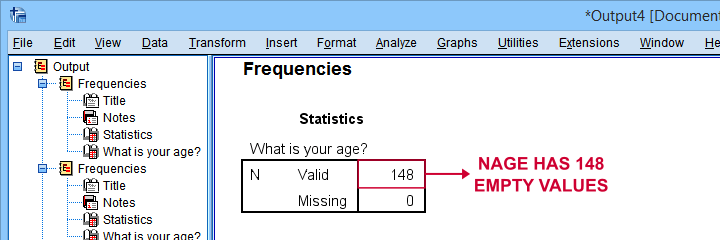
As shown below, our minimal corrections resulted in a mere 148 (out of 3,895) unconverted ages. A quick scroll down our table shows that no further conversions are possible.
We'll now convert our new age variable into numeric with ALTER TYPE and inspect the result.
alter type nage(f3).
*Check age distribution.
frequencies nage
/histogram.
*Exclude nage = 99 from all analyses and/or editing.
missing values nage (99).
Inspect Final Results
First off, note that our final age variable has N = 148 missing values -just as expected. It is important to check this because ALTER TYPE may result in missing values without throwing any error or warning.
Next, a histogram over our final age values is shown below.
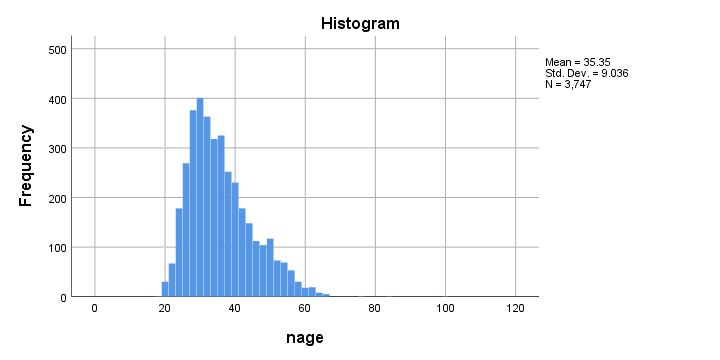
Although the age distribution looks plausible, the x-axis runs up to 120 years. SPSS often applies a 20% margin on both sides so this may indicate an age around 100 years.
Closer inspection shows that somebody reported an age of 99 years. As we think that's not plausible for the current study, we set it as a user missing value.
Done.
Thanks for reading!
Convert String Date to SPSS Date Variable
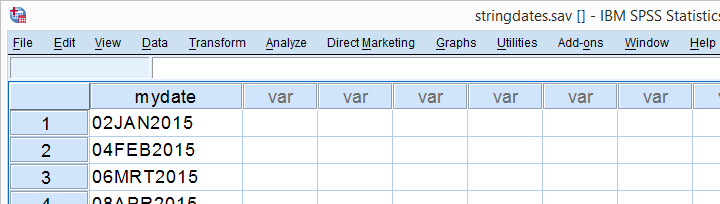
“I've a string variable in my data holding dates formatted as ‘01JAN2016’ without separators between the day, month and year components. To make things worse, the month abbreviations are in Dutch and 3 of those differ from their English counterparts. How can I change this string into an SPSS date variable?”
Step 1: Add Separators
The data are in stringdates.sav. Now, generally, ALTER TYPE is the way to go for this job but the day-month-year separators missing poses a problem here. The solution is to add those by combining CONCAT with CHAR.SUBSTR . We'll do so in a new string variable because this allows us to inspect if the conversion succeeded.
Syntax 1
string newdate(a11).
*Add day, month, year from old string to new string and separate these components with dashes.
compute newdate = concat(
char.substr(mydate,1,2), /*start at character 1, extract 2 characters (day)
'-',
char.substr(mydate,3,3), /*start at character 3, extract 3 characters (month)
'-',
char.substr(mydate,6,4) /*start at character 6, extract 4 characters (year)
).
*Check if result is as desired.
execute.
*Convert stringdate with dashes to SPSS date variable.
alter type newdate (date11).
Step 2: Inspect Results
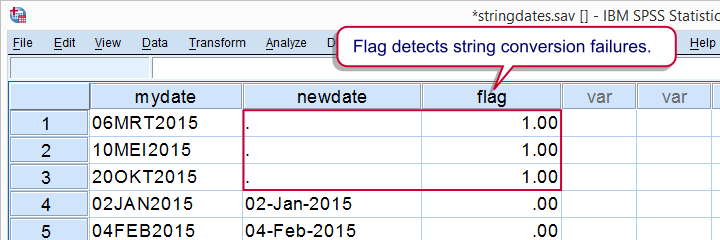
A huge flaw in ALTER TYPE is that it may result in system missing values without throwing any error or warning if it can't convert one or more values. Failing to detect this -not unlikely in larger datasets- may result in severely biased results. We'll therefore flag cases -if any- which have a system missing value on our new date variable but not an empty string value on our input variable.
Syntax 2
compute flag = (missing(newdate) & mydate <> '').
*Move flagged cases -if any- to top of dataset.
sort cases by flag(d).
Result
Step 3: Replace Some Month Abbreviations
Note that we flagged some conversion failures but one case with an empty string value on our input variable is not one of them. The Dutch month abbreviations (such as “MRT” instead of “MAR”) are the reason for this. Fortunately, only 3 month abbreviations differ between English and Dutch.
We'll now convert our outcome variable back to string and recompute it. After doing so, we'll REPLACE the three deviant abbreviations in a DO REPEAT loop. After doing just that, we'll successfully convert our new variable into a date variable.
Syntax 3
delete variables flag.
*Change newdate back to string.
alter type newdate(a11).
*Recompute newdate as previously.
compute newdate = concat(
char.substr(mydate,1,2), /*start at character 1, extract 2 characters (day)
'-',
char.substr(mydate,3,3), /*start at character 3, extract 3 characters (month)
'-',
char.substr(mydate,6,4) /*start at character 6, extract 4 characters (year)
).
*Replace 3 Dutch abbreviations with their English counterparts.
do repeat #old = 'MRT' 'MEI' 'OKT' /#new = 'MAR' 'MAY' 'OCT'.
compute newdate = replace(newdate,#old,#new).
end repeat.
*Check if result is as desired.
execute.
*Convert to SPSS date variable - second attempt.
alter type newdate(date11).
Result
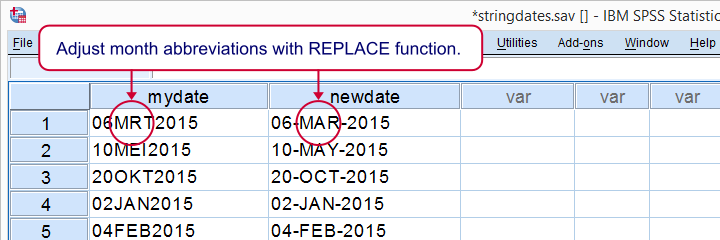
As we readily see, our conversion has now fully succeeded. In a larger dataset, you might want to inspect the result more carefully by flagging conversion failures like we did previously.
We really enjoyed writing this little tutorial. It nicely shows how combining the right building blocks gets a seemingly complicated job done with minimal effort and perfect precision. Hope you liked it too!
SPSS Dictionary
It's not informative that "a respondent has 0 on v1" unless you know what v1 and 0 refer to. Such information - what the data actually represent - is collectively know as the dictionary.
This tutorial merely explains what the SPSS dictionary is. For learning how to modify it properly (that is, by syntax), see Changing Variable Properties 1 - Introduction.
SPSS Dictionary - What is it?
- The SPSS Dictionary is a part of an SPSS data file that holds all metadata. Literally, metadata is "data about the data".
- Metadata describes the real-world meaning of values, variables and files. The best known properties of the SPSS dictionary are probably variable labels and value labels.
- Don't overlook the importance of such information. In many cases, data are worthless in the absence of correct metadata.
- The dictionary also holds more technical information on variables such as variable types and formats.
SPSS Dictionary Commands
- Some commands refer directly to SPSS' dictionary. An important one is
DISPLAY DICTIONARY.which is extensively used by Create Dictionary Dataset. - Another example is
APPLY DICTIONARY- which is basically what SPSS Clone Variables Tool does. - Commands for modifying variable properties also apply to the SPSS dictionary (instead of the actual data). For a handy overview, see our SPSS Dictionary Tutorials.
SPSS Dictionary - Complete Overview
Note: we tried to sort these properties from most to least important. "Optional" indicates whether a property can (technically) be absent.
| Name | Applies to | Function | Importance | Optional |
|---|---|---|---|---|
| variable name | Variable | Variable identifier. | High | No |
| Label | Variable | Normal language description of the meaning of variables. | High | Yes |
| Value Labels | Value | Normal language description of the meaning of values. | High | Yes |
| User Missing Values | Value | Tells SPSS which values to ignore in calculations. | High | Yes |
| Type | Variable | Tells SPSS how to store values internally. | High | No |
| Format | Variable | Tells SPSS how to display numeric values. | High | No |
| Document | Data file | Long data file description. | Low | Yes |
| Width | Variable | Maximum number of characters that values may consist of. | Low | No |
| Columns | Variable | Variable's column width (as displayed on screen). | Low | No |
| Variable Attribute | Variable | Descriptive tags for variables. | Low | Yes |
| Datafile attribute | Data file | Data file description using arrays. | Low | Yes |
| File label | Data file | Short data file description. | Low | Yes |
| Align | Variable | Alignment of data values (on screen). | Low | No |
| Measure | Variable | Measurement level nominal, ordinal or scale (= metric). | Low | No |
| Role | Variable | The variable's supposed relation to other variables. | Low | No |
SPSS Datetime Variables Tutorial
This tutorial shows how to work proficiently with SPSS datetime variables. You can follow along with it by downloading and opening hospital.sav.
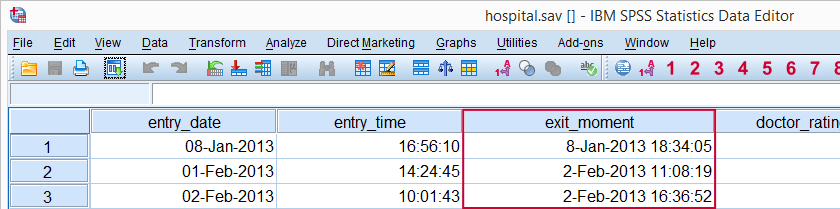
SPSS Main Datetime Functions
This tutorial will cover the datetime functions outlined in the table below. Most of them apply to SPSS date variables and time variables as well because their values are stored in numbers of seconds too.
| Function | Use | Example | Returns |
|---|---|---|---|
| DATESUM | Add number of given time units to datetime variable | DATESUM(datetime,1,'months') | Time value |
| DATEDIFF | Compute difference between two datetime variables in given time unit | DATEDIFF(datetime1,datetime2,'hours') | Standard numeric value |
| CTIME | Convert seconds to other time unit without truncation | CTIME.DAYS(timespan) | Standard numeric value |
| XDATE | Extract date or time component from datetime variable | XDATE.HOURS(time) | Standard numeric value |
| DATE.DMY | Create date value from day, month and year | DATE.DMY(10,2,2015) | Date value |
| TIME.HMS | Create time value from hours, minutes, seconds | TIME.HMS(20,15,30) | Time value |
SPSS Date and Time to Datetime
We'll first combine entry_date and entry_time into entry_moment because we'll need it a bit later on. The syntax below shows how to do so with a very basic COMPUTE command followed by FORMATS.
compute entry_moment = entry_date + entry_time.
exe.
*2. Display seconds as normal date with time.
formats entry_moment(datetime20).
SPSS DATESUM Function
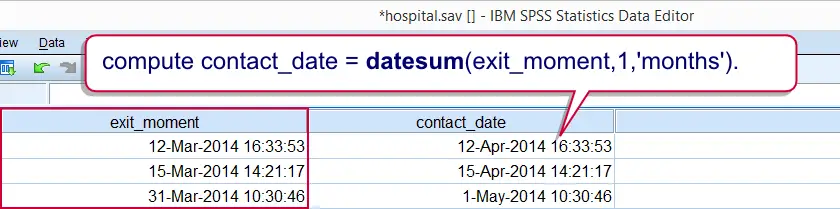
SPSS DATESUM adds to datetime variables a given number of time units (days, hours and so on). Specify a negative number of time units for subtraction. For example, the hospital staff wants to contact their patients for a survey exactly 1 month after they've left the hospital. A notification should be sent 7 days prior to contacting patients.
Both datetime variables are easily created with SPSS DATESUM as shown in the syntax below. The result in data view is shown in the following screenshot.
compute contact_date = datesum(exit_moment,1,'months').
exe.
*2. Show contact_date as normal dates with times.
formats contact_date(datetime20).
*3. Compute notify_date as 7 days prior to contact_date.
compute notify_date = datesum(contact_date,-7,'days').
exe.
*4. Show notify_date as normal dates with times.
formats notify_date (datetime20).
SPSS DATEDIFF Function
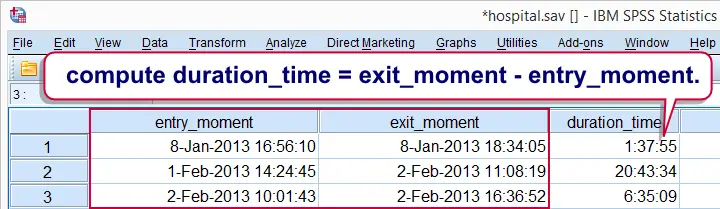
SPSS DATEDIFF function returns the difference between two datetime values in a given time unit (hours, days and so on). For example, how long did the patients stay in the hospital? The syntax below first answers the question by using DATEDIFF.
Now, keep in mind that DATEDIFF truncates (rounds down) its return values. Personally, we prefer using a basic subtraction here. Because datetime values are numbers of seconds, the result is a number of seconds too. However, we can easily show these as hours, minutes and seconds by giving it a time format. This is shown in the second example below.
SPSS DATEDIFF Syntax Example
compute duration_days = datediff(exit_moment,entry_moment,'days').
exe.
*2. Compute duration in seconds by basic subtraction.
compute duration_time = exit_moment - entry_moment.
exe.
*3. Show duration_time in hours, minutes, seconds.
formats duration_time(time8).
SPSS CTIME Function
SPSS CTIME converts seconds to other time units such as hours, days or months.Oddly, CTIME.YEARS is painfully missing in SPSS while CTIME.SECONDS -which does basically nothing- is present instead. In contrast to DATEDIFF, return values aren't truncated.
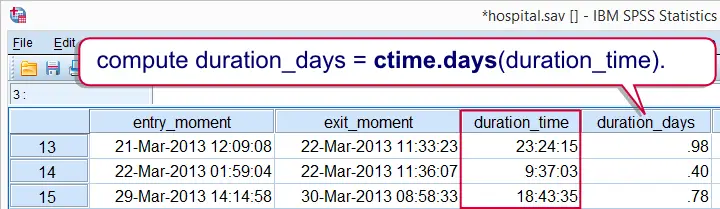
Note that duration_time is a time variable so it really holds numbers of seconds. We can convert those to the desired time units with CTIME as demonstrated below; the syntax recalculates duration in days but this time without truncating the outcome values.
An alternative to CTIME here is using a basic division; since a day holds 86,400 seconds, dividing time values by 86400 is equivalent to using CTIME.DAYS. This is shown in the second example below.
SPSS CTIME Syntax Example
compute duration_days = ctime.days(duration_time).
exe.
*2. Alternative second to day conversion.
compute duration_days = duration_time / 86400.
exe.
SPSS XDATE Function
SPSS XDATE extracts date components from date, time and datetime values. The syntax below thus shows how to extract the day, month and year from exit_moment. Note that XDATE.MDAY rather than XDATE.DAY returns the day of the month.
compute exit_day = xdate.mday(exit_moment).
compute exit_month = xdate.month(exit_moment).
compute exit_year = xdate.year(exit_moment).
exe.
SPSS Datetime Comparisons
Comparing two SPSS datetime variables is straightforward and can be done with the usual operators such as >, <= and others. For example, exit_moment must obviously be greater (later in time) than entry_moment for all visits. The syntax confirms that this holds for all visits by using IF.
SPSS Datetime Comparison Example 1
compute exit_after_entry = 0.
*2. Compare datetimes to detect abnormal cases.
if exit_moment > entry_moment exit_after_entry = 1.
*3. All cases flagged, no abnormalities.
frequencies exit_after_entry.
As we mentioned before, datetime values are numbers of seconds. You can compare datetime values to a given date by converting the latter into seconds as well. This is readily done by DATE.DMY as we'll show in a minute.
For example, a report criticizing the hospital was published on November 2nd., 2014. As a first step in evaluating its impact on patient ratings, we'll flag all visits that ended on or after this date.The COMPUTE command used in the syntax below looks a bit weird. It is explained in Compute A = B = C. Keep in mind that date values are identical to datetime values with 00:00:00 as their time components.
SPSS Datetime Comparison Example 2
compute after_report = exit_moment > date.dmy(2,11,2014).
exe.
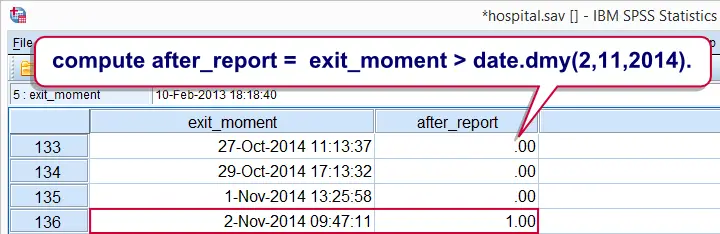
The report was published at 12:10:05 (10 minutes, 5 seconds past noon). Note that two visits ending on the publication date but before the publication time were flagged. How can we exclude such cases?
Well, remember that an SPSS datetime value is identical to the sum of an SPSS date value and an SPSS time value. The syntax below uses this in order to compare a datetime variable to a given date and time.
SPSS Datetime Comparison Example 3
compute after_report = exit_moment > date.dmy(2,11,2014) + time.hms(12,10,5).
exe.
SPSS Datetime Variables Basics
Working with SPSS datetime variables is not hard at all if you understand some basics. This tutorial walks you through just those. Those who'd like to follow along may download and open hospital.sav.
SPSS Datetime Variables - What Are They?
SPSS datetime variables are variables that hold the numbers of seconds between the year 1582 and a given time on a given date. SPSS datetime values may look complicated (containing letters of months and dashes) but their values are really nothing more than huge numbers. The actual values are shown by specifying an f format, the syntax for which is formats exit_moment(f1).
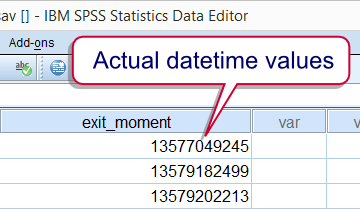
Note that this doesn't change the values in any way; they're merely displayed differently. Don't let their unusual appearance fool you: SPSS datetime variables are numeric variables. This implies that all standard numeric functions can be used on them. However, for calculations on SPSS datetime variables we'll mostly use SPSS date functions.
SPSS Datetime Formats
We just saw that SPSS datetime values really are huge numbers of seconds. For displaying them as normal dates with times, set their format to one of the two formats outlined below.
| Variable Type | Format family | Format (example) | Shown as |
|---|---|---|---|
| Numeric | Datetime | Datetime17 | 8-Jan-2013 18:34 |
| Numeric | Datetime | Datetime20 | 8-Jan-2013 18:34:05 |
Date, Time and Datetime
The relation between SPSS date variables, time variables and datetime variables can be seen from a quick comparison of their definitions:
- SPSS date variables contain the number of seconds between 1582 and the very start (midnight) of a given date;
- SPSS time variables contain the number of seconds between the very start (midnight) of a date and some given time;
- SPSS datetime variables contain the number of seconds between 1582 and a given time on a given date.
We conclude from this that SPSS date values can be seen as datetime values with a 00:00:00 time component. Running formats entry_date(datetime20). confirms this; SPSS date values can be properly displayed as datetime20 because their actual values are very similar to datetime values.
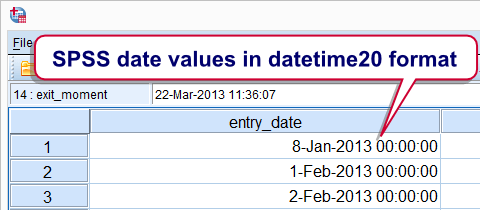
Reversely, datetime values can be displayed as dates as well. If doing so, just keep in mind that the time component does not disappear by no longer displaying it.
SPSS Datetime from Date and Time
At this point we may see that SPSS datetime values are simply the sum of a date value and a time value. Running the syntax below confirms this.
compute entry_moment = entry_date + entry_time.
exe.
*2. Show seconds as normal date with time.
formats entry_moment(datetime20).
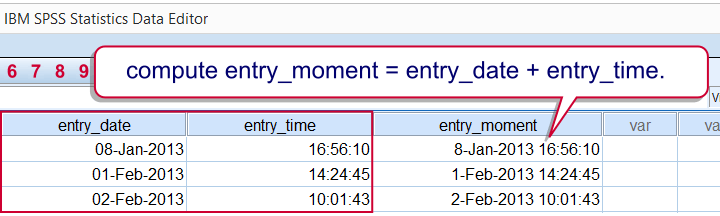 Combining date and time into datetime - it really that simple.
SPSS Extract Date from Datetime
SPSS users who understand datetime variables will rarely -if ever- want to extract their date components. For the sake of completeness, the official way is to create the date variable using DATE.DMY. We obtain the required day, month and year components by applying XDATE to the datetime variable.
Note the day of the month is captured by XDATE.MDAY; XDATE.DAY is not valid in SPSS.In the syntax below, we first create day, month and year as intermediate variables before combining them with DATE.DMY. This step may be skipped by substituting XDATE into DATE.DMY which we'll demonstrate when extracting time values from datetime values.
compute day = xdate.mday(exit_moment).
compute month = xdate.month(exit_moment).
compute year = xdate.year(exit_moment).
exe.
*2. Compute date from (extracted) day, month and year components.
compute exit_date = date.dmy(day,month,year).
exe.
*3. Display as normal date values.
formats exit_date(date11).
The unofficial way to extract date values from datetime values uses SPSS TRUNC function; we remove the time portion from datetime values by rounding them down to 86400 seconds (one day).
delete variables exit_date.
*2. Extract date from datetime by TRUNC function.
compute exit_date = trunc(exit_moment,86400).
exe.
*3. Show date in date format.
formats exit_date(date11).
SPSS Extract Time from Datetime
SPSS time values can be created from hours, minutes and seconds by TIME.HMS. Again, these components can be extracted from datetime values by using XDATE as shown in the syntax below.
compute exit_time = time.hms(xdate.hour(exit_moment),xdate.minute(exit_moment),xdate.second(exit_moment)).
exe.
*2. Show seconds as normal times.
formats exit_time(time8).
A faster alternative here is using SPSS MOD function; we basically throw away the date component by removing all 86400-folds (a day has 86400 seconds) from the datetime values.
compute exit_time = mod(exit_moment,86400).
exe.
*2. Show seconds as normal times.
formats exit_time(time8).
SPSS Time Variables Tutorial
Having a solid understanding of what SPSS time variables are, you may find calculations on them surprisingly easy. This tutorial will demonstrate SPSS' main time functions. However, we'll also show that we often don't even need them for getting things done.
Throughout this tutorial, keep in mind that SPSS time variables contain time spans in numbers of seconds that may or may not express clock times. Second, time variables are numeric variables so all numeric functions can be applied to them.
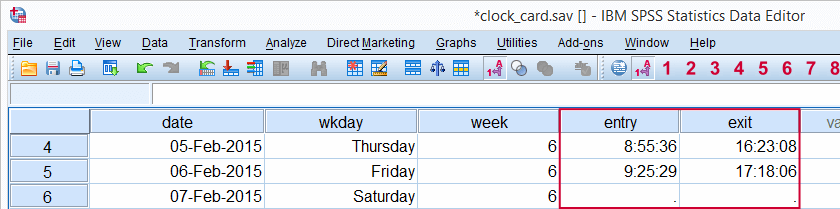
We encourage you try the time calculations we'll demonstrate yourself. You can do so by downloading and opening clock_card.sav.
SPSS Main Time Functions
Most of SPSS' date functions are intended for time variables as well. After outlining them in the table below, we'll take a closer look at them in the remainder of this tutorial.
| Function | Use | Example | Returns |
|---|---|---|---|
| DATEDIFF | Compute difference between two times in given time unit | DATEDIFF(time1,time2,'minutes') | Standard numeric value |
| DATESUM | Add number of given time units to time variable | DATESUM(time,8,'hours') | Time value |
| XDATE | Extract time component from time variable | XDATE.HOURS(time) | Standard numeric value |
| TIME.HMS | Create time value from hours, minutes, seconds | TIME.HMS(20,15,30) | Time value |
SPSS DATEDIFF Function
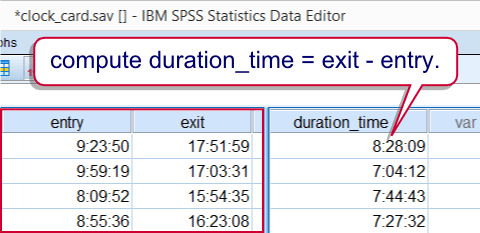
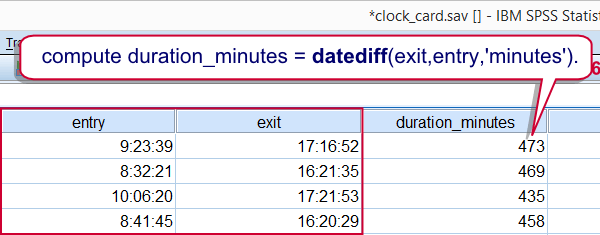
Our data contain the entry and exit times of an employee as registered with a clock card. We first want to know how much time he spent in the office per day. The syntax below shows how to do so with and without using DATEDIFF. The screenshots show the results of both options.
SPSS DATEDIFF Syntax Example
compute duration_time = exit - entry.
exe.
*2. Display duration in seconds as time.
formats duration_time(time8).
*2. Compute duration in minutes with DATEDIFF.
compute duration_minutes = datediff(exit,entry,'minutes').
exe.
*4. Hide decimals.
formats duration_minutes(f3).
SPSS DATESUM Function
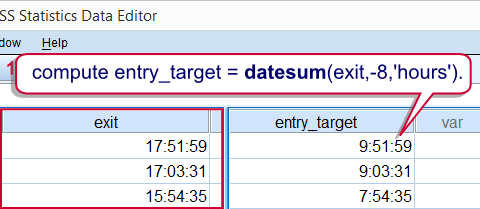
Employees are supposed to spend 8 hours per day in the office. That is, their entry times should be their exit times minus 8 hours. Such time subtractions (or additions) are easily accomplished by using DATESUM. However, realizing that hours consist of 3600 seconds, we may obtain the same result with an ordinary addition as shown in the second example.
SPSS DATESUM Syntax Example
compute entry_target = datesum(exit,-8,'hours').
exe.
*2. Display entry_target as time.
formats entry_target(time8).
*3. Alternative to datesum for exit_target (8 hours after entry).
compute exit_target = entry + 3600 * 8.
exe.
*4. Display exit_target as time.
formats exit_target(time8).
SPSS XDATE Function
Employees are supposed to be in before 10 AM. One way to flag late entries is to extract the hours from the entry times with XDATE. XDATE needs to be suffixed with the time unit we wish to extract as in XDATE.HOURS. Finally, we'll RECODE the hours into our flag variable.
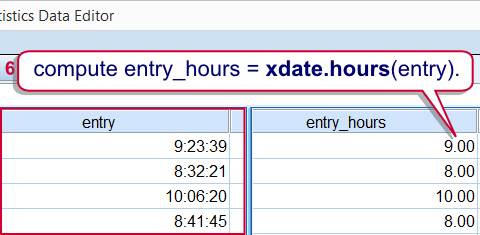
SPSS XDATE Syntax Example
compute entry_hours = xdate.hours(entry).
exe.
*2. Flag cases where entry_hours >= 10 (late entry).
recode entry_hours(lo thru 9 = 0)(10 thru hi = 1) into late_entry.
exe.
SPSS TIME.HMS Function
SPSS time variables hold numbers of seconds. TIME.HMS converts a number of hours, minutes and seconds into seconds and is thus creates SPSS time values from normal time components.
The minutes and seconds are optional; if omitted, they'll default to zero. That is, TIME.HMS(10) is a shorthand for TIME.HMS(10,0,0) and returns 36,000 (seconds). We can show this value as 10:00:00 by setting its format to TIME8.
The syntax below uses TIME.HMS as an alternative way to flag late entries.
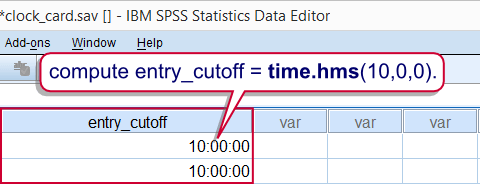
SPSS TIME.HMS Syntax Example
compute entry_cutoff = time.hms(10,0,0).
exe.
*2. Display entry_cutoff as time.
formats entry_cutoff(time8).
*3. Delete late_entry before recalculating it.
delete variables late_entry.
*4. Recalculate late_entry.
if entry < entry_cutoff late_entry = 0.
if entry >= entry_cutoff late_entry = 1.
exe.
SPSS Time Comparisons
SPSS time comparisons are utterly simple when we realize that SPSS time values are just numbers of seconds that are shown as hours, minutes and seconds. For comparing an SPSS time value to a normal time value (hours, minutes and seconds), simply convert the latter into seconds. TIME.HMS does just that. Next, simply use SPSS' standard operators such as >, <= and others.
For example, employees are not supposed to leave before 4 PM. The syntax below shows a super shorthand for flagging early exits.The unusual COMPUTE command is explained in Compute A = B = C.
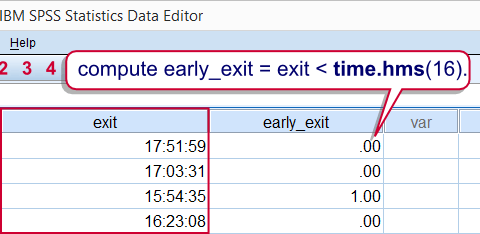
SPSS Time Comparison Syntax Example 1
compute early_exit = exit < time.hms(16).
exe.
SPSS Time Comparison Example 2
Because TIME.HMS is a function, it can be substituted in other functions, particularly RANGE. The following example shows how to use it for flagging entries during rush hours (from 8 until 9 AM).
compute rush_hour_entry = range(entry,time.hms(8),time.hms(9)).
exe.
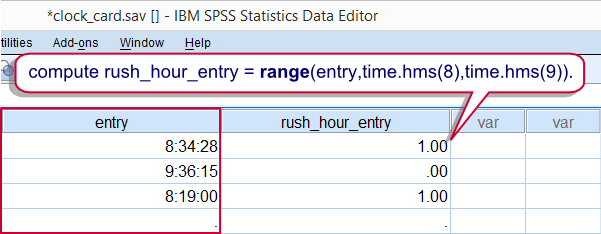
SPSS Time Variables in AGGREGATE
This final example again reemphasizes that SPSS time variables are numeric variables, holding seconds, on which normal numeric functions can be used.
For example, employees are supposed to work 40 hours per week. To what extent do our data meet that criterion? We already calculated duration_time, which is a time variable holding seconds. We can simply sum it per week by using AGGREGATE. This results in seconds per week which we'll show as normal times by setting their format to TIME8.
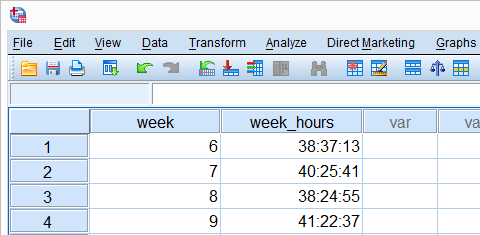
aggregate outfile *
/break week
/week_hours = sum(duration_time).
*2. Show seconds as hours, minutes, seconds.
formats week_hours(time8).
SPSS LTRIM – Remove Leading Spaces from Strings
Summary
SPSS LTRIM (left trim) removes leading spaces from string values. These occur especially when converting numbers to strings by using the stringfunction.The reason this occurs is that SPSS' default alignment for numeric variables is right and string values are always padded with spaces up to the length of their containing variable. For removing trailing rather than leading spaces, see RTRIM.
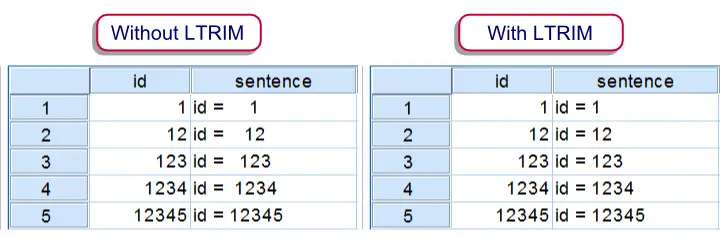 Results of CONCAT with and without LTRIM
SPSS Ltrim Example
The syntax below demonstrates a situation where you'll like to use LTRIM. Running step 1 simply creates a mini dataset. Step 3 uses CONCAT without LTRIM and thus results in values containing undesired spaces. Finally, step 4 shows how to avoid these by using LTRIM. The results of steps 3 and 4 are shown in the above screenshot.
SPSS Ltrim Syntax Example
data list free / id(f5).
begin data
1 12 123 1234 12345
end data.
*2. Declare new string variable.
string sentence(a10).
*3. Results in undesired spaces before numbers.
compute sentence = concat("id = ",string(id,f5)).
exe.
*4. Ltrim undesired spaces and then concatenate.
compute sentence = concat("id = ",ltrim(string(id,f5))).
exe.